TiviMate is not on the Amazon App Store. You install it through an app called Downloader using code 272483. That is the part that trips most people up on the first try. The whole process takes about 13 minutes.
On Android phones and Android TV boxes with Google Play, you skip all of that — search TiviMate in the Play Store and install it like any other app.
TiviMate is a player, not a content provider. You need an active IPTV subscription with Xtream Codes credentials (server URL + username + password) or an M3U URL to watch anything. Before you start, verify your credentials → — if they are wrong, setup will look like it worked but nothing will play.
What you need:
- Fire Stick, Android TV Box, or Android phone
- Active IPTV subscription credentials
- 10–15 minutes for Fire Stick, 3–5 minutes for Android
Choose Your Device to Install TiviMate
Fire Stick
Fire Stick, Fire TV, Fire TV Cube
⏱️ ~13 minAndroid TV Box
Nvidia Shield, Mi Box, Sony Bravia
⏱️ 5–8 minAndroid Phone
Any Android phone or tablet
⏱️ 3–5 minGoogle TV
Chromecast with Google TV, TCL
⏱️ 10–15 minHow to Install TiviMate on Fire Stick — Downloader Code 272483
▼
TiviMate is not in the Amazon App Store, so you install it through sideloading. Three steps: install the Downloader app, unlock developer options, then use code 272483 to pull the TiviMate APK. Developer options only need to be set up once per device.
| Part | What you do | Time |
|---|---|---|
| 1 | Install Downloader | 2 min |
| 2 | Enable Developer Options | 5 min |
| 3 | Enter code 272483, install TiviMate | 6 min |
Part 1: Install Downloader on Fire Stick
Downloader is a free browser and file manager from the Amazon App Store. You need it to install APK files that are not in Amazon’s store.
From the Fire TV home screen, go to My Apps and tap the Search icon in the top right.
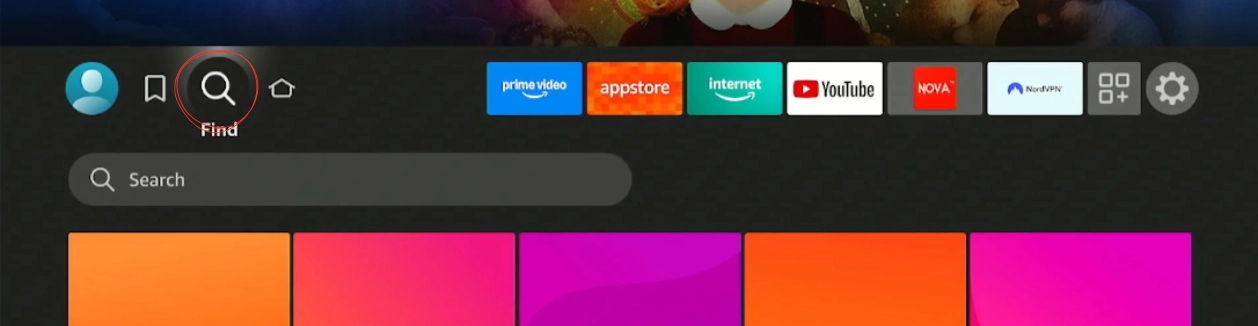
Type Downloader. The app by AFTVnews appears at the top of the results.
Select Downloader from the results and press Download. It is free and installs in about 30 seconds.
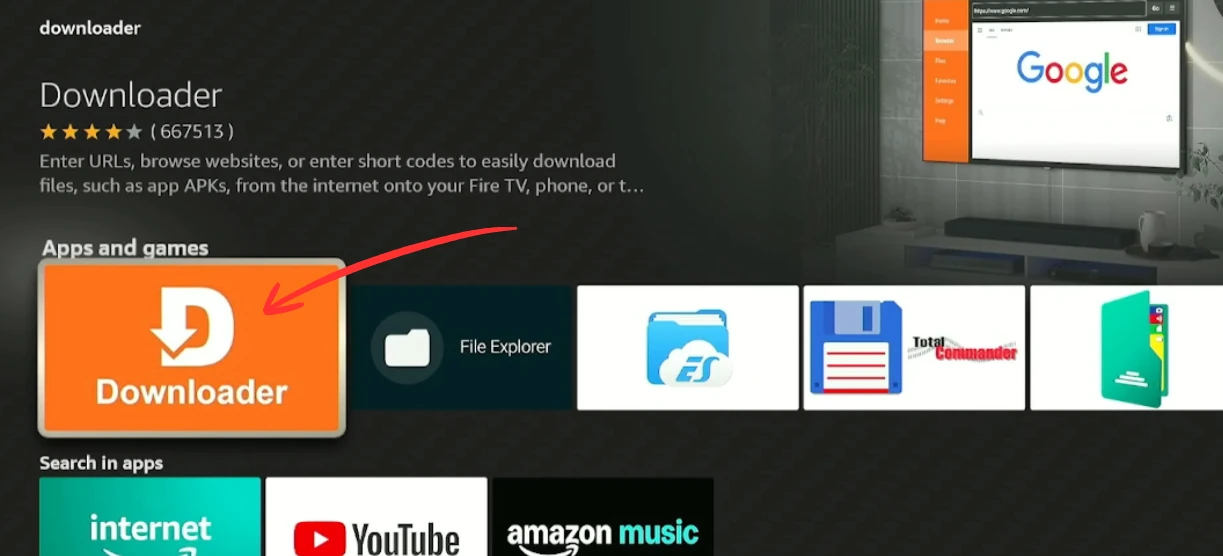
Downloader is installed. Move to Part 2 before opening it.
Part 2: Enable Developer Options on Fire Stick
From the home screen, open Settings (gear icon). Scroll right and select My Fire TV.
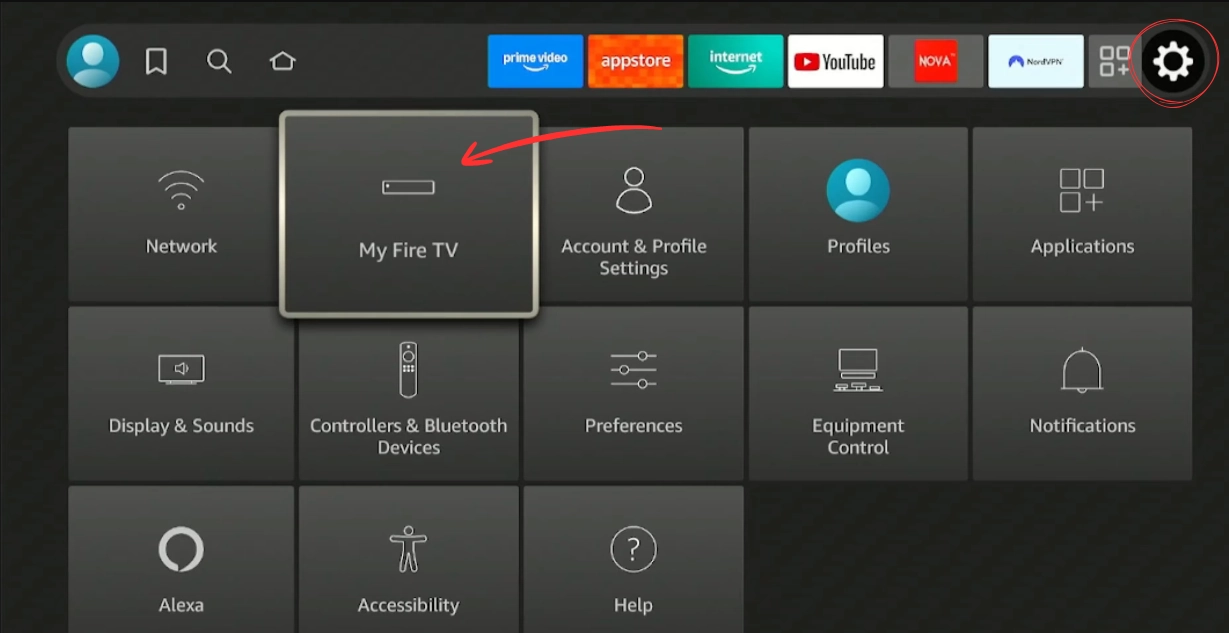
Scroll down and select About — the developer unlock is hidden here.
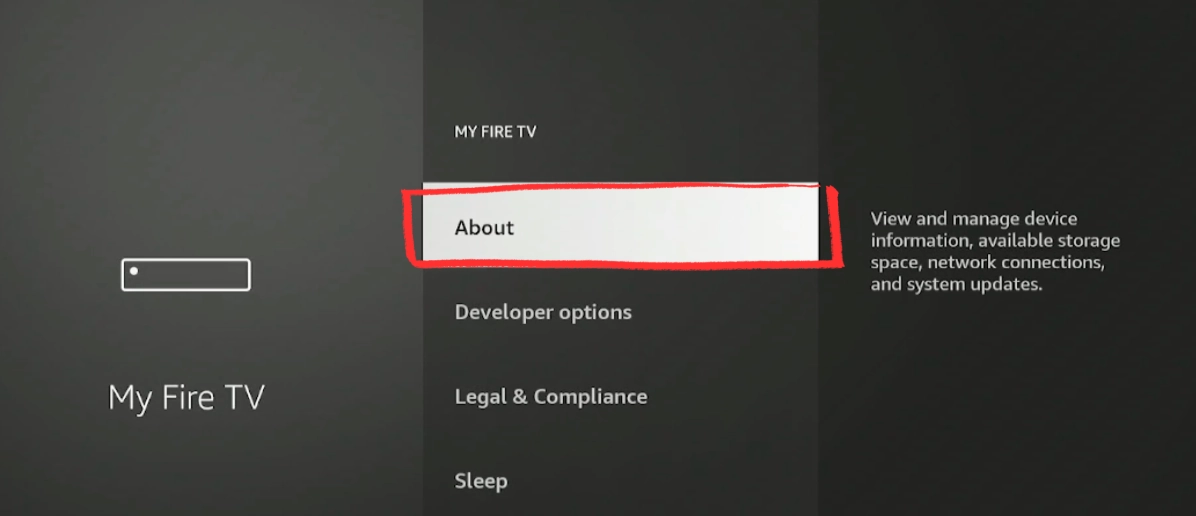
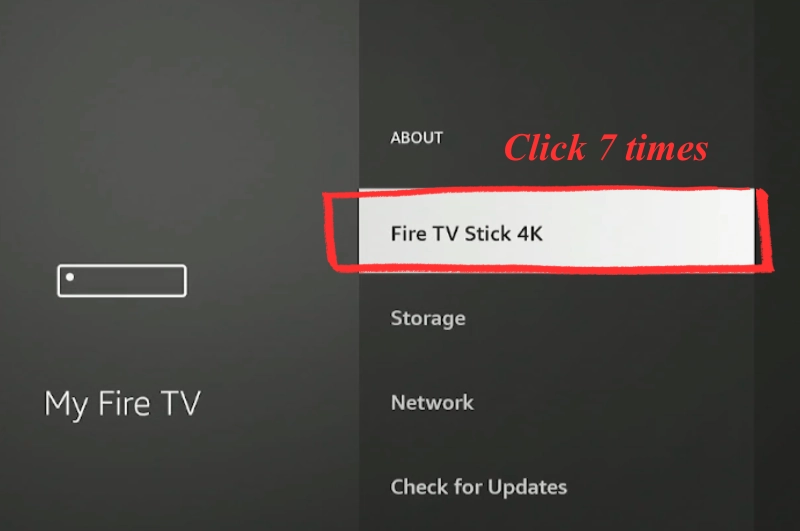
Select your Fire TV Stick device name and click it rapidly 7 times. A counter shows how many clicks are left. After 7, you see "You are now a developer."
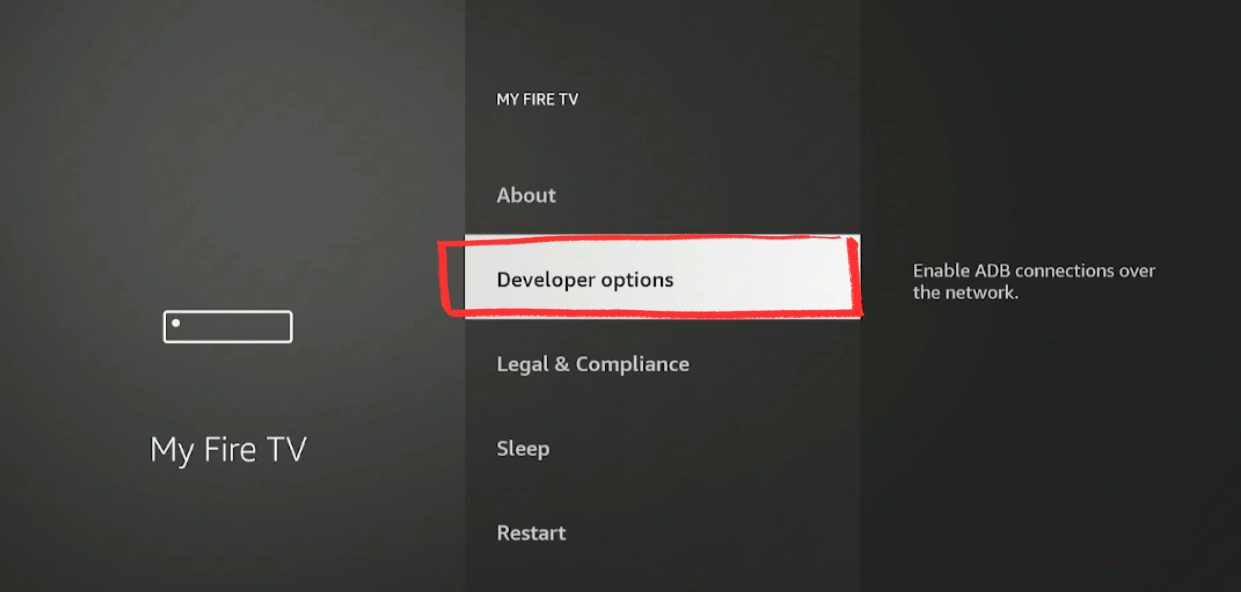
Press Back to return to My Fire TV. Developer Options now appears in the list. Select it.
Find ADB Debugging and toggle it ON. Confirm if prompted.
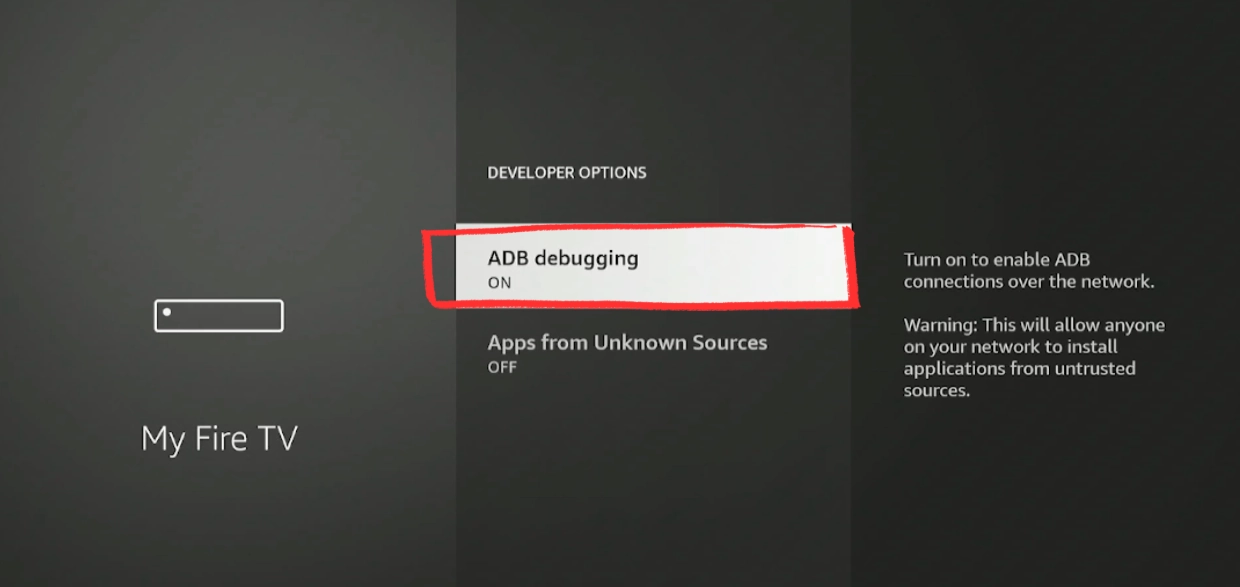
Press Back, then open Install Unknown Apps. Find Downloader in the list and toggle it ON.
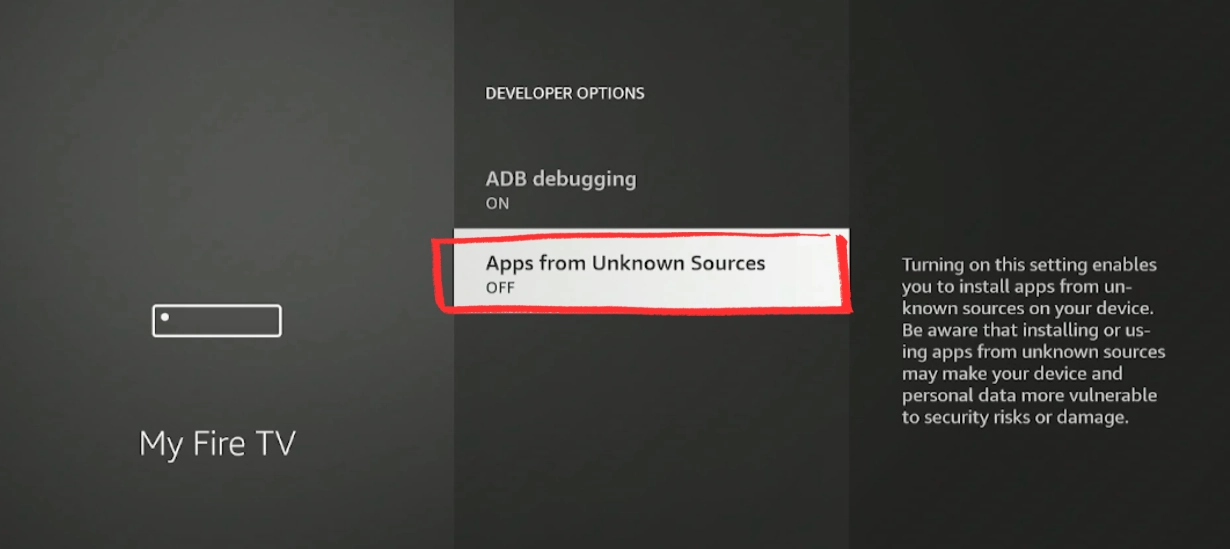
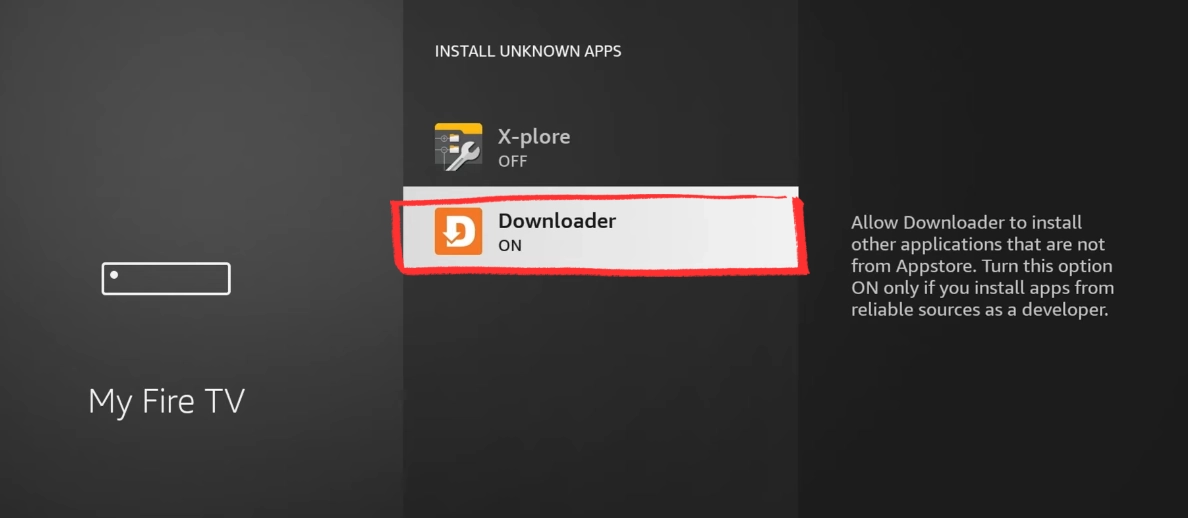
Press Home to return to the home screen.
Developer Options are on. Downloader can now install TiviMate.
Part 3: Enter code 272483 and install TiviMate
Find Downloader in your apps and open it. If prompted, press Allow to grant file access — without it the APK cannot save.
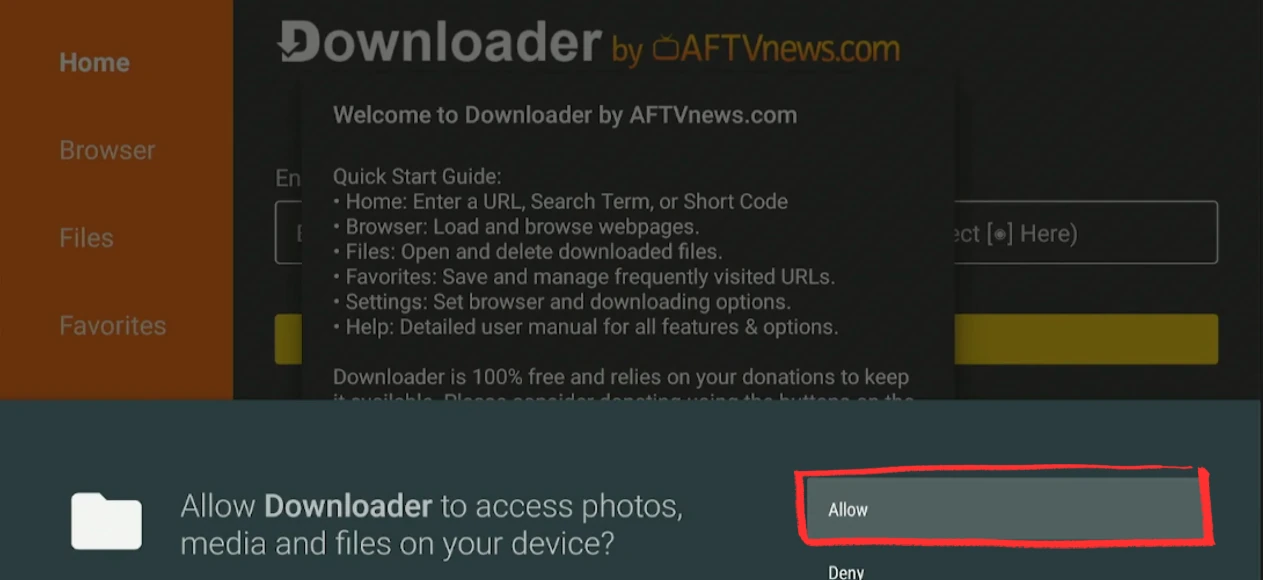
In the URL field, type 272483 and press GO. This is the official TiviMate short code — Downloader fetches the latest APK automatically.
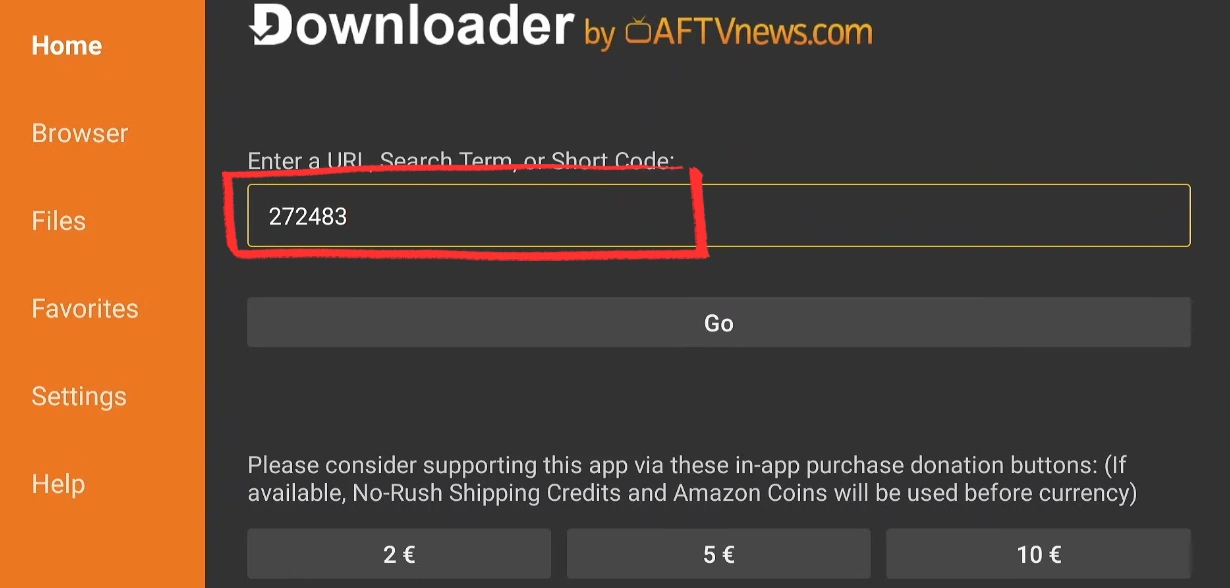
Download takes 15–30 seconds depending on your connection.
Accept the privacy policy, press Install, then OPEN when done. TiviMate launches directly to the Add Playlist screen on first run.
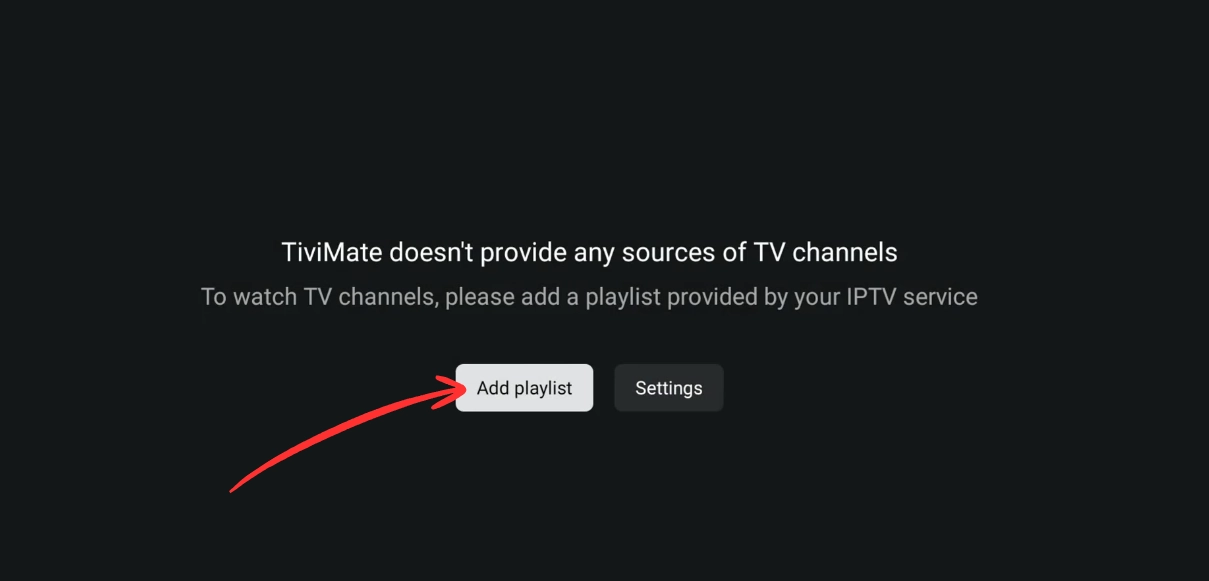
Press Add Playlist and pick your connection type:
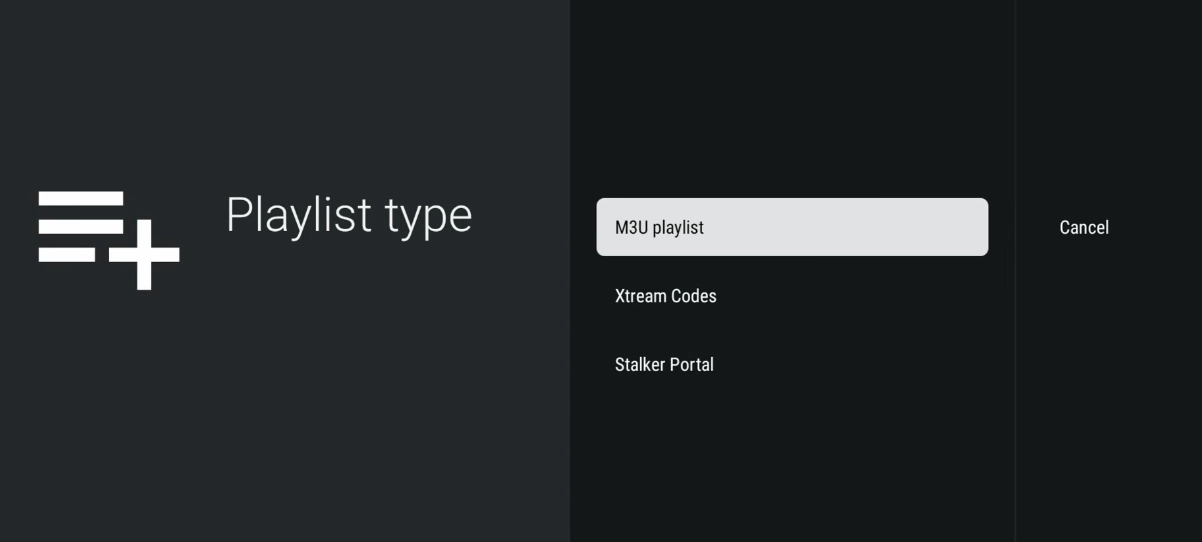
- Xtream Codes API — enter your Server URL, Username, Password. In my testing, Xtream credentials stay valid even when providers switch servers — M3U links break far more often.
- M3U URL — paste your playlist URL. Simpler to start with, but you update it manually whenever the link changes.
Press Next, leave Live TV and VOD selected, then Done. Channels load in 1–2 minutes.
Channels should be loading. Nothing after 3 minutes? Check your credentials at our IPTV Checker.
Enter the full URL instead: https://tivimate.com/ — the short code occasionally rotates but the URL always works.
ADB Debugging must be ON first. Go back to Developer Options and enable ADB Debugging, then try Install Unknown Apps again.
Large playlists take 2–3 minutes to load. Still empty after 5 minutes? Check your credentials — they may be expired or wrong.
Credentials are case-sensitive. The server URL must include http:// or https:// and the port (e.g. :8080). Copy-paste — do not type by hand.
How to Install TiviMate on Android TV Box
▼/iptv-setup-android-tv-box-tivimate-installation-guide.webp)
On most Android TV boxes, TiviMate is in the Play Store and installs in under 5 minutes. On some devices (Google TV, some LG models), it does not appear and you need to sideload it via Downloader — same concept as Fire Stick.
| Step | Action | Time |
|---|---|---|
| A | Install from Play Store (most devices) | 5 min |
| B | Sideload via Downloader (if not on Play Store) | 8 min |
Nvidia Shield · Mi Box S · Sony Bravia · Philips Android TV
LG Smart TV · Google TV · Chromecast GTV
Case A — Install TiviMate from Google Play Store
Part 1: Install TiviMate
Open Google Play Store on your Android TV Box. In the search bar, type "TiviMate IPTV Player".
/android-tv-google-play-store-search-downloader-iptv.webp)
Select the app by NZERINC LLC and press Install. Wait for the download to complete.
/tivimate-iptv-player-google-play-install-android-tv.webp)
TiviMate is installed on your Android TV Box. Open it to continue with Part 2.
Part 2: Add Your IPTV Playlist
Open TiviMate. On first launch you will see: "TiviMate doesn't provide any sources of TV channels." This is normal — press Add Playlist to connect your IPTV subscription.
/tivimate-first-launch-add-playlist-android-tv-box-iptv.webp)
Press Add Playlist, select Xtream Codes API (recommended), enter your server URL, username and password, then press Done. Channels load in 1–2 minutes.
/tivimate-playlist-type-m3u-xtream-codes-android-tv-box-iptv.webp)
Your IPTV playlist is connected and channels are loading. TiviMate is ready to use.
Case B — TiviMate Not Available (Sideload via Downloader)
/tivimate-not-available-google-play-android-tv-box-iptv.webp)
If you see the message above, your device is not supported by direct install. Follow these steps to sideload TiviMate in under 5 minutes.
Part 1: Install Downloader
Open Google Play Store. In the search bar type "Downloader" — it appears in Popular Apps (orange icon by AFTVnews). Install it.
/android-tv-box-google-play-store-search-downloader-app-iptv.webp)
Downloader will appear in your Favorite Apps row on the Android TV home screen.
Downloader is installed. Continue to Part 2 to install TiviMate.
Part 2: Install TiviMate via Code 272483
Open Downloader. In the URL field type 272483 and press Go. Downloader automatically finds and downloads the TiviMate APK file.
/downloader-enter-code-272483-install-tivimate-android-tv-box-iptv.webp)
When the install popup appears → press Install. Confirm again if asked a second time.
TiviMate is installed. Add your playlist — same steps as Case A Part 2 above.
TiviMate Premium on Android TV Box
Renews yearly. Best if you want to try Premium before committing.
Pays for itself in under 4 years. Covers future price increases.
Go to tivimate.com, create a free account, choose your plan and complete the purchase.
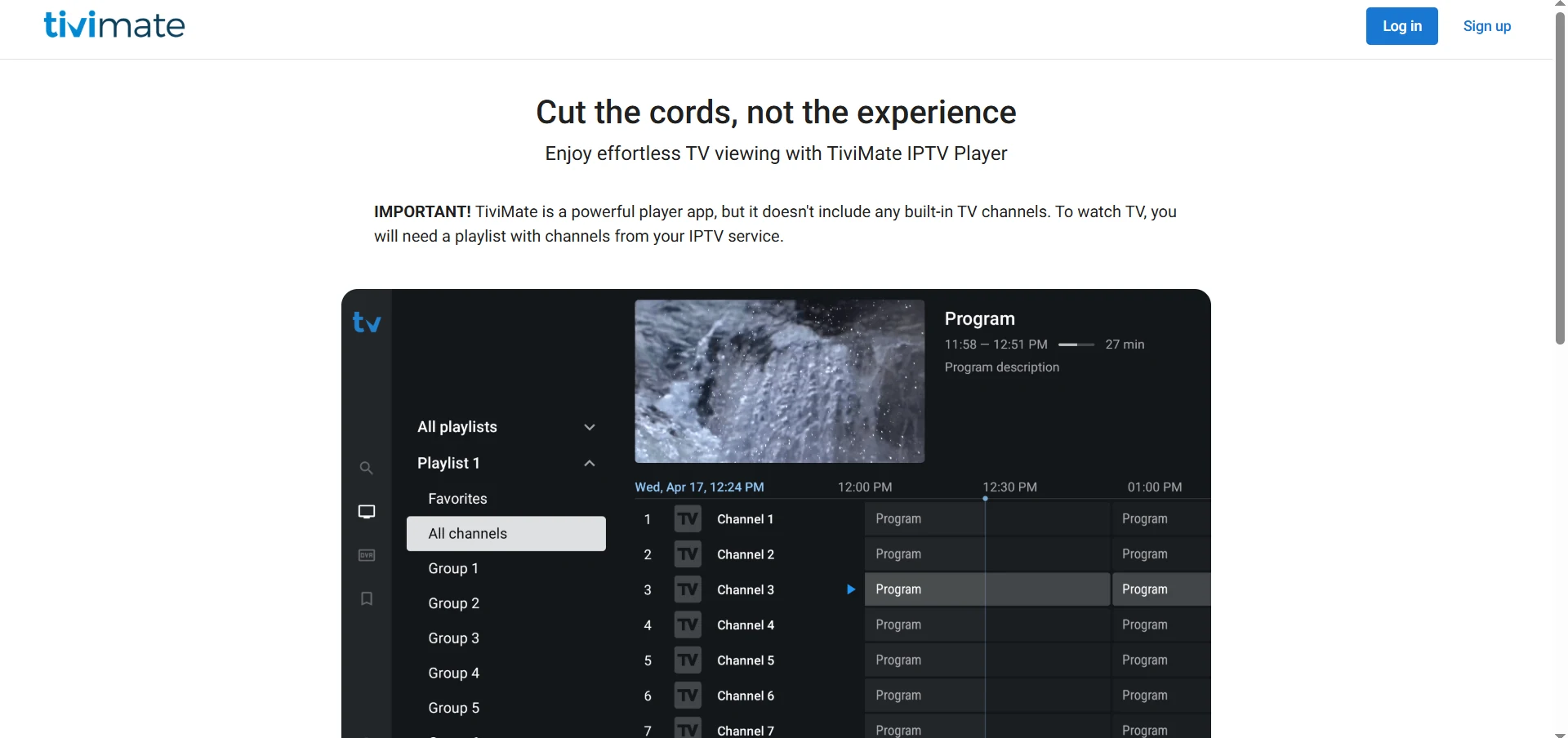
Open TiviMate on your Android TV Box, go to Settings → Unlock Premium.
/tivimate-settings-unlock-premium-playlists-android-tv-box-iptv.webp)
Log in with your tivimate.com credentials to activate Premium instantly.
/tivimate-premium-enter-mail-password-android-tv-box-iptv.webp)
You are now enjoying the full TiviMate Premium experience — multi-playlist, EPG, recording and complete customization on your Android TV Box.
How to Install TiviMate on Android Phone and Tablet
▼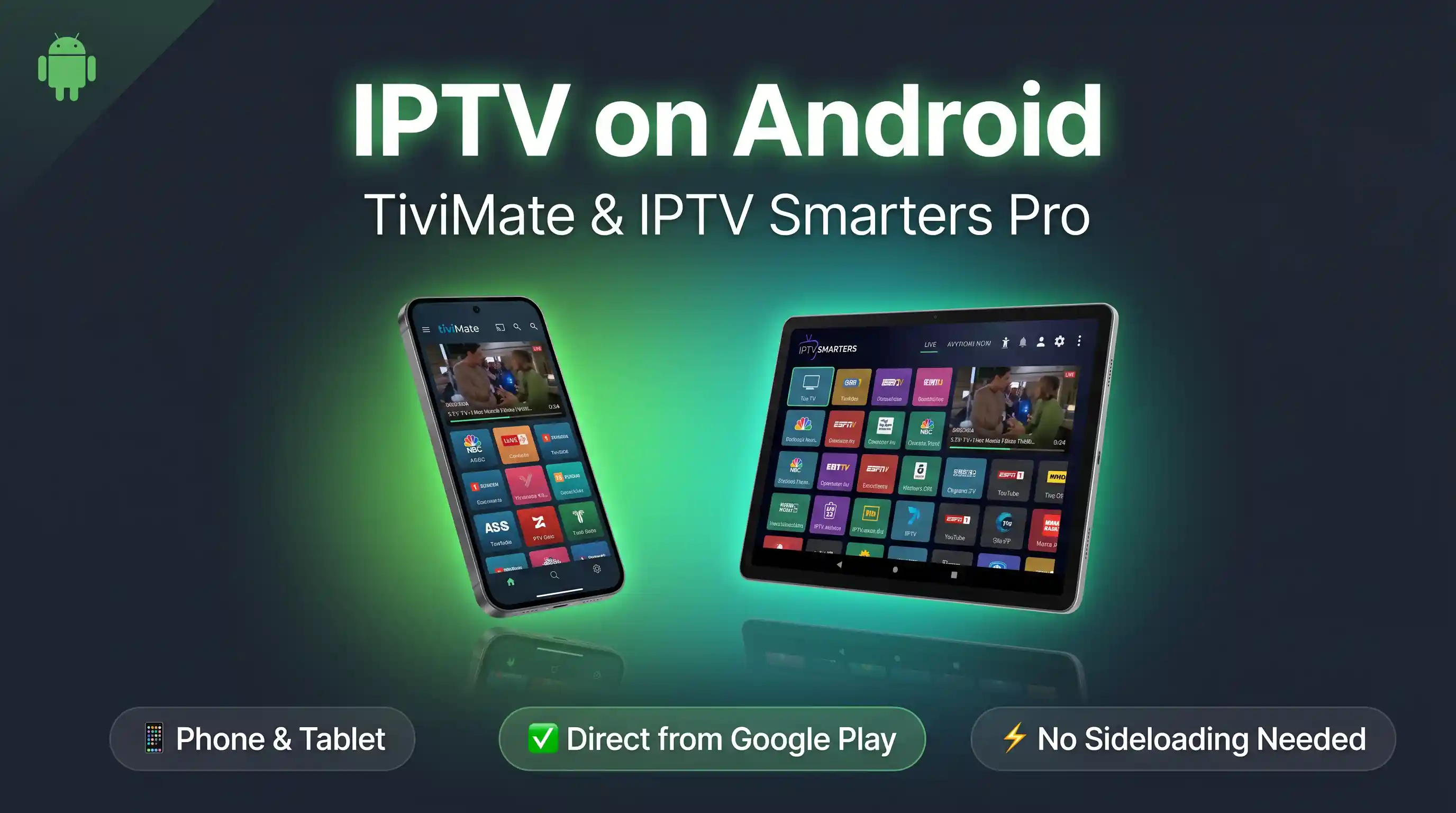
IPTV setup on Android phone and tablet is the quickest of all devices — TiviMate installs directly from Google Play in seconds. No sideloading, no developer mode, no extra steps required.
| Step | Action | Time |
|---|---|---|
| 1 | Install TiviMate from Play Store | 1 min |
| 2 | Add your IPTV playlist | 2 min |
| 3 | Start watching | 1 min |
Part 1: Install TiviMate
Open Google Play Store on your Android phone or tablet and search for "TiviMate IPTV Player".
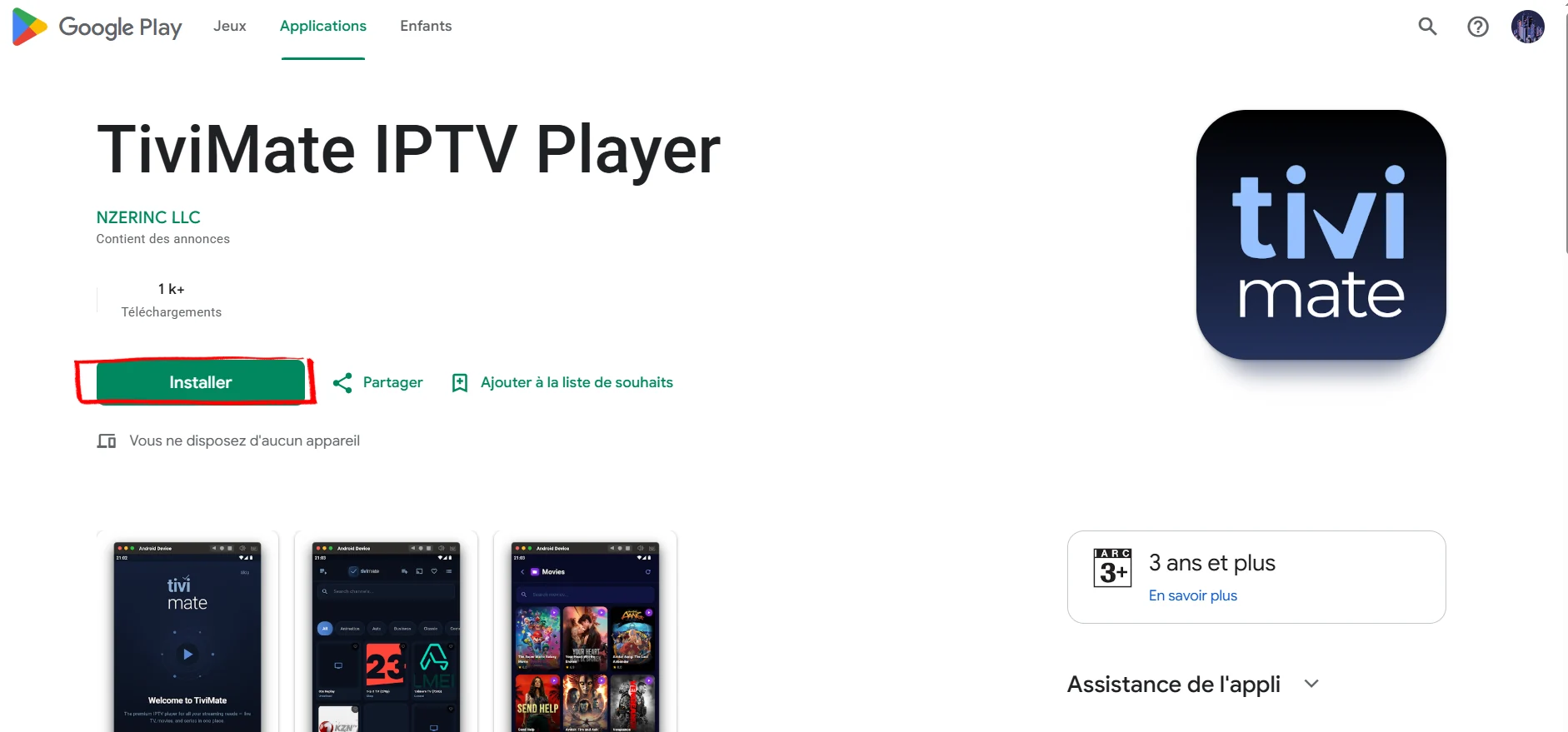
Select the app published by NZERINC LLC — the only official TiviMate on Google Play. Tap Install and wait about 30 seconds.
TiviMate is installed on your Android device. Open it to continue with Part 2.
Part 2: Add Your IPTV Playlist
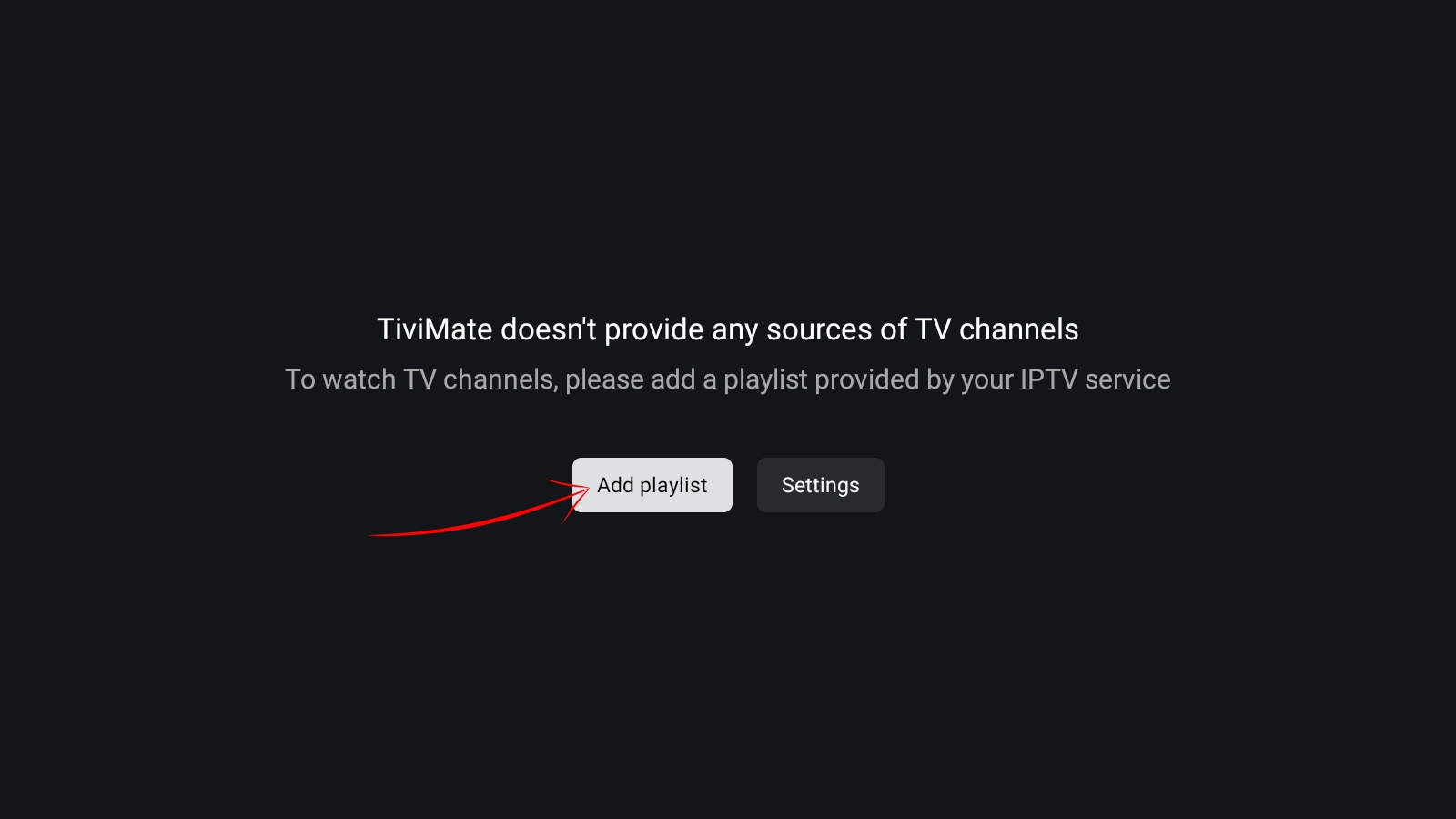
Open TiviMate. On first launch you will see: "TiviMate doesn't provide any sources of TV channels." This is normal. Tap Add Playlist to connect your IPTV subscription.
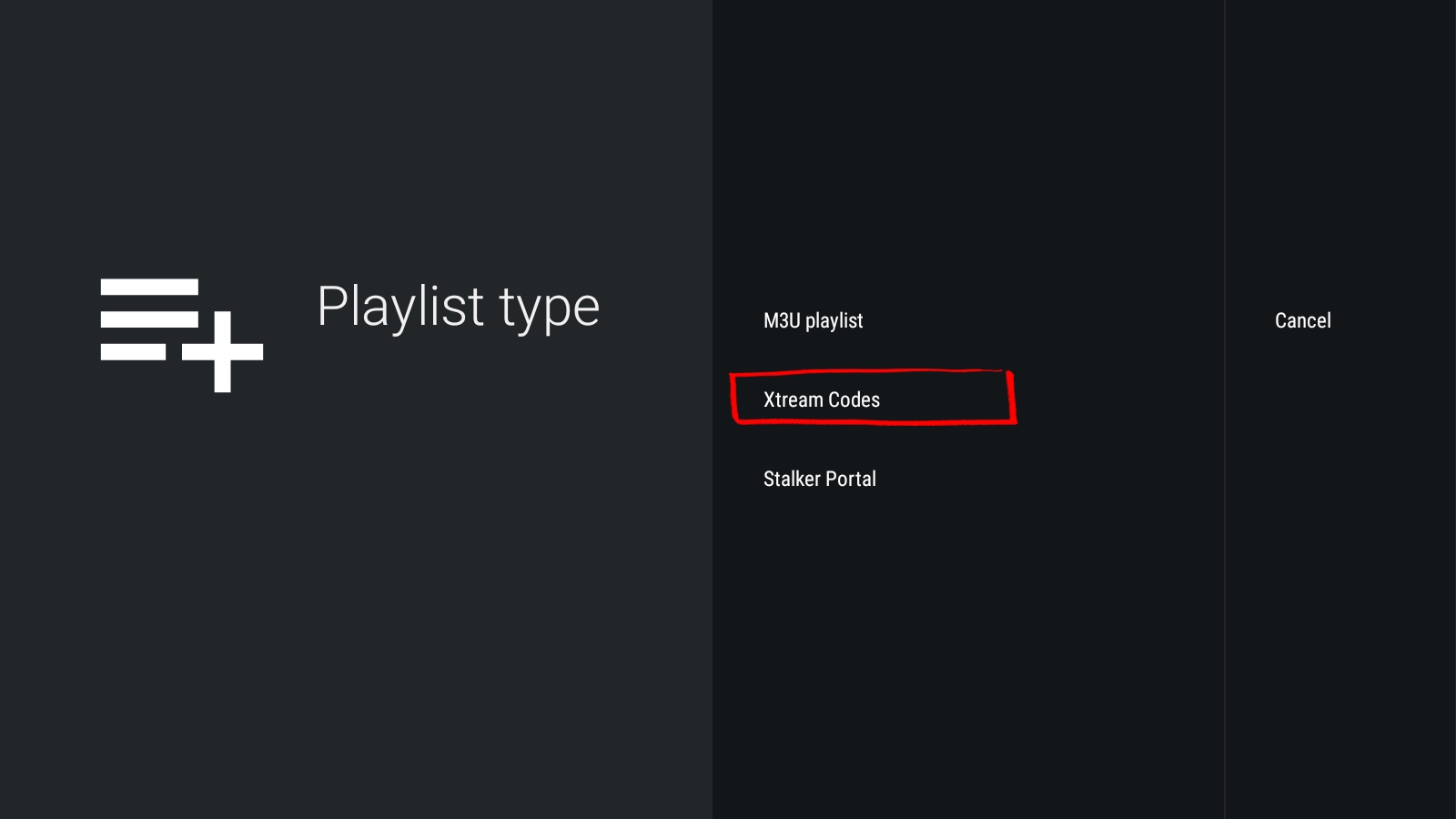
Choose your playlist format. Use Xtream Codes (recommended) if your provider gave you a server URL, username and password. Use M3U playlist if you only have a .m3u link.
Enter your Server URL, Username and Password exactly as provided by your IPTV service. Tap Next, keep Live TV and VOD selected, then tap Done.
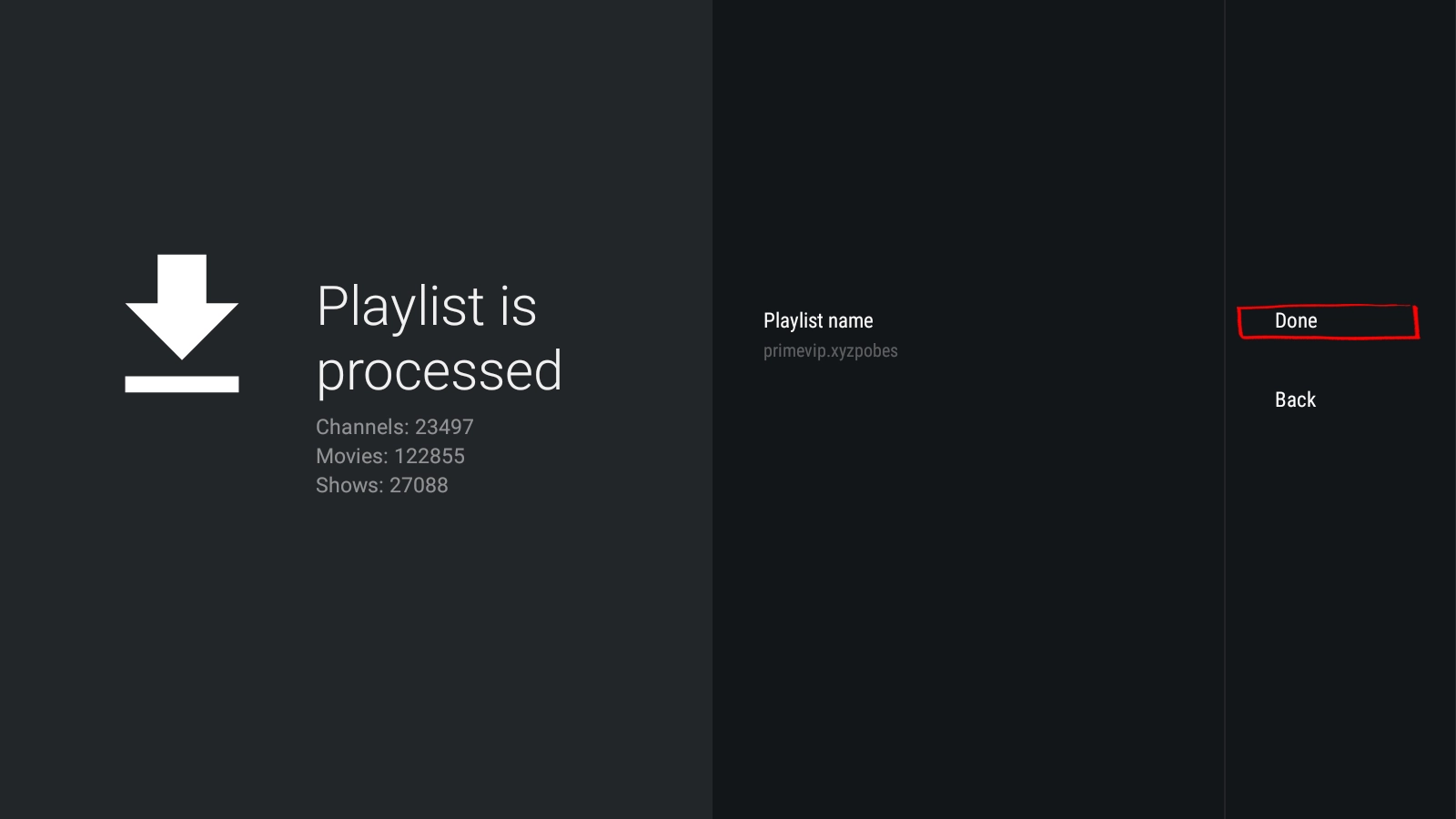
TiviMate downloads and processes your full channel list. Tap Done when it completes to start watching.
Your IPTV playlist is connected and all channels are loaded. TiviMate is ready to use on your Android device.
TiviMate Premium on Android Phone
Includes a 7-day free trial. Best if you want to test Premium before committing.
Pay once, use forever on up to 5 devices.
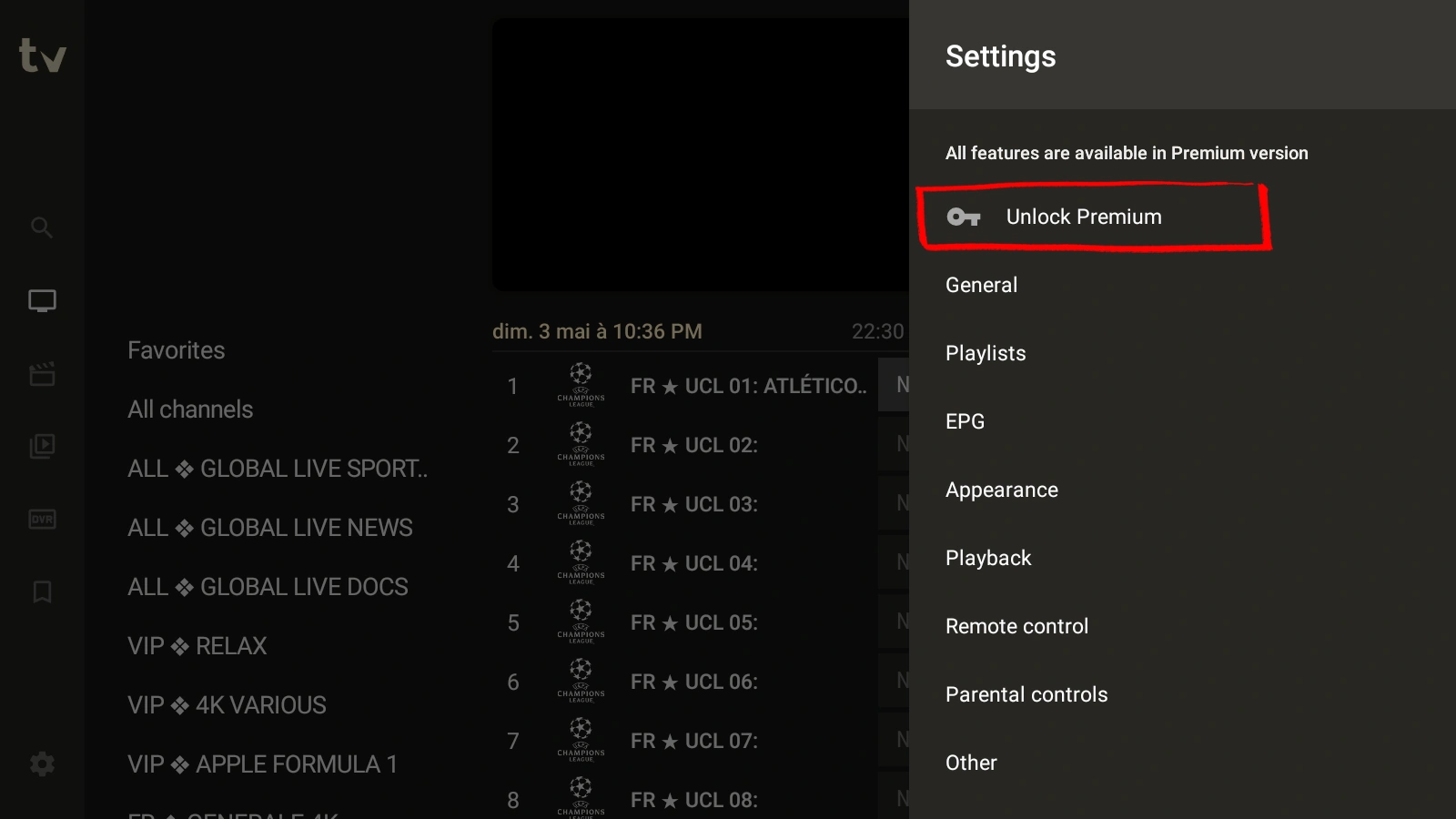
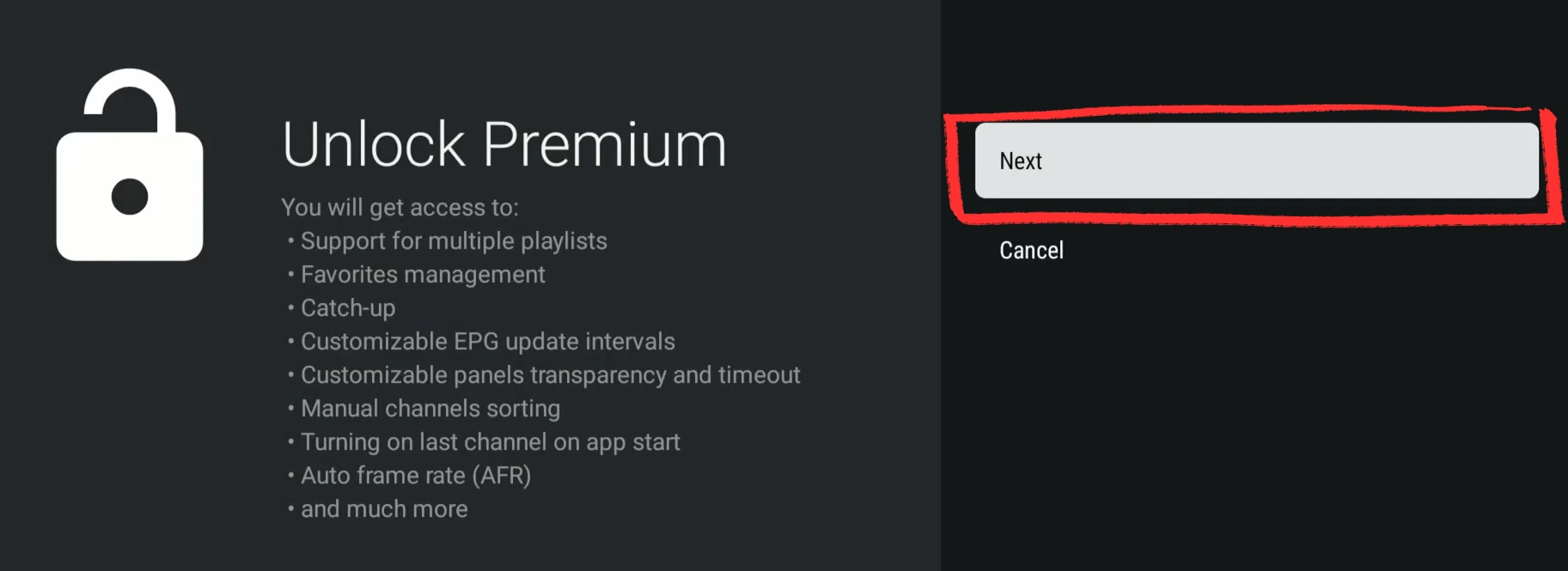
Inside TiviMate, open Settings from the left sidebar. Tap Unlock Premium at the top of the settings panel.
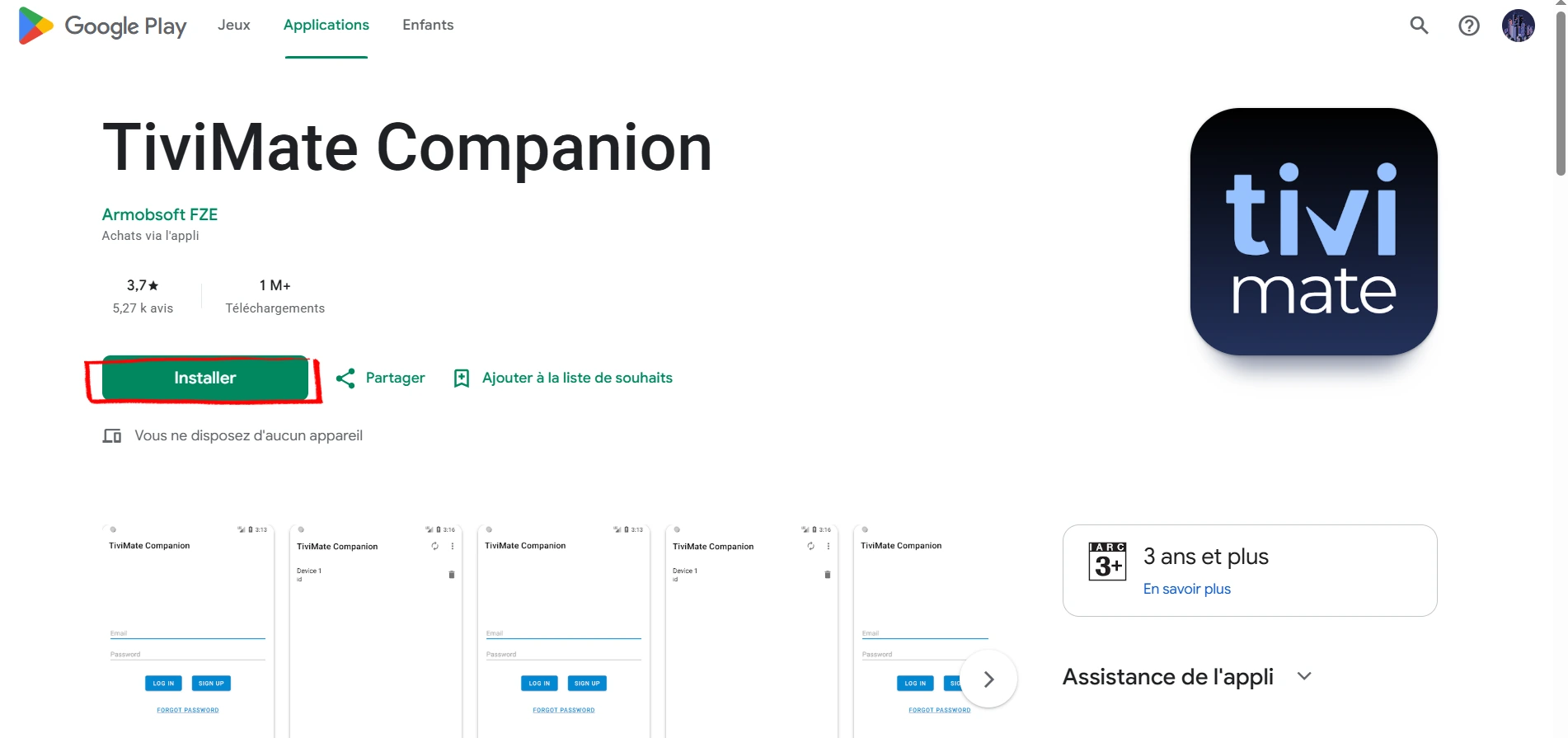
TiviMate Premium is purchased through a separate app called TiviMate Companion. Install it from Google Play — published by Armobsoft FZE.
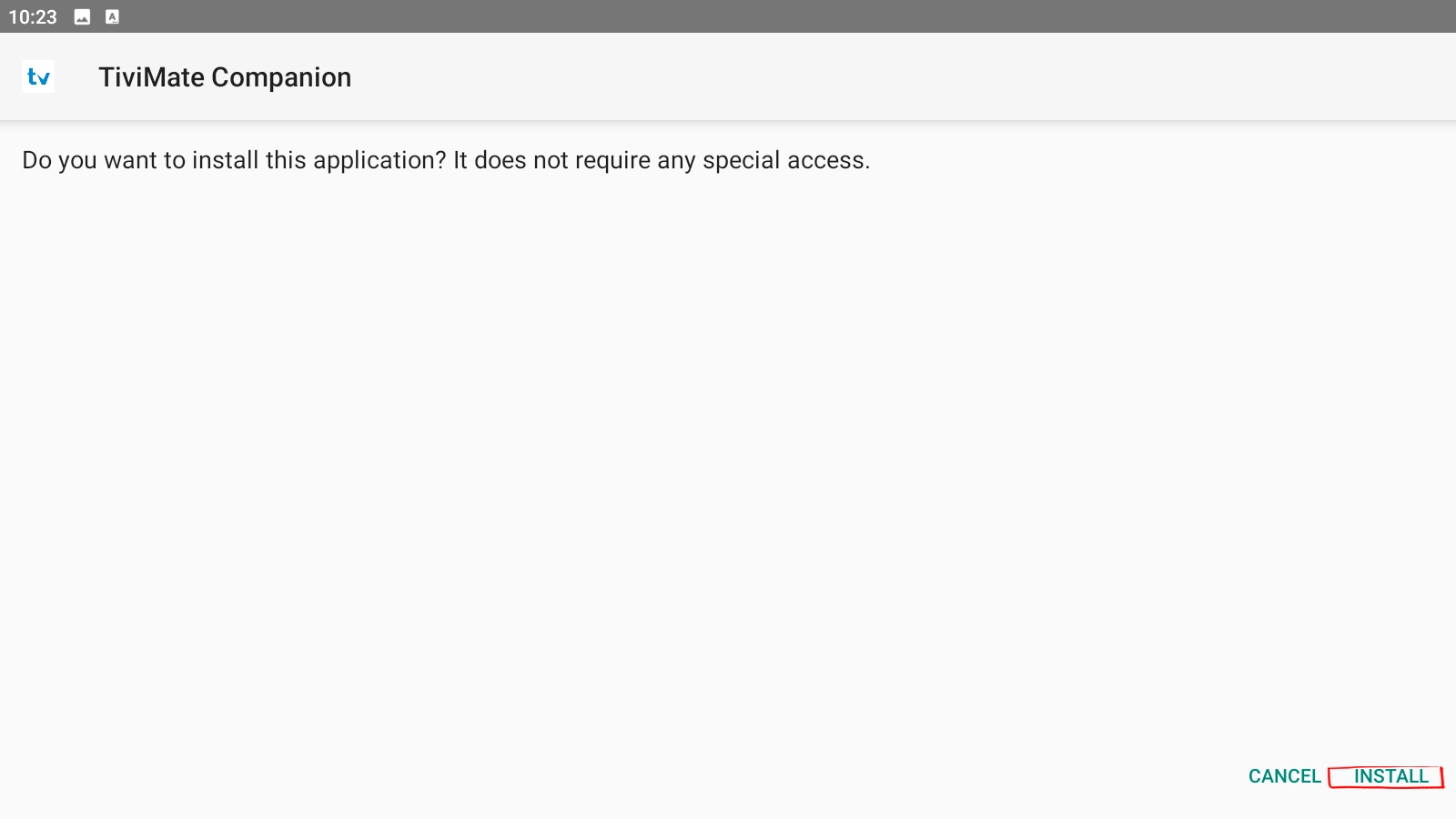
When prompted, tap Install. TiviMate Companion does not ask for special permissions — it is a lightweight account manager.
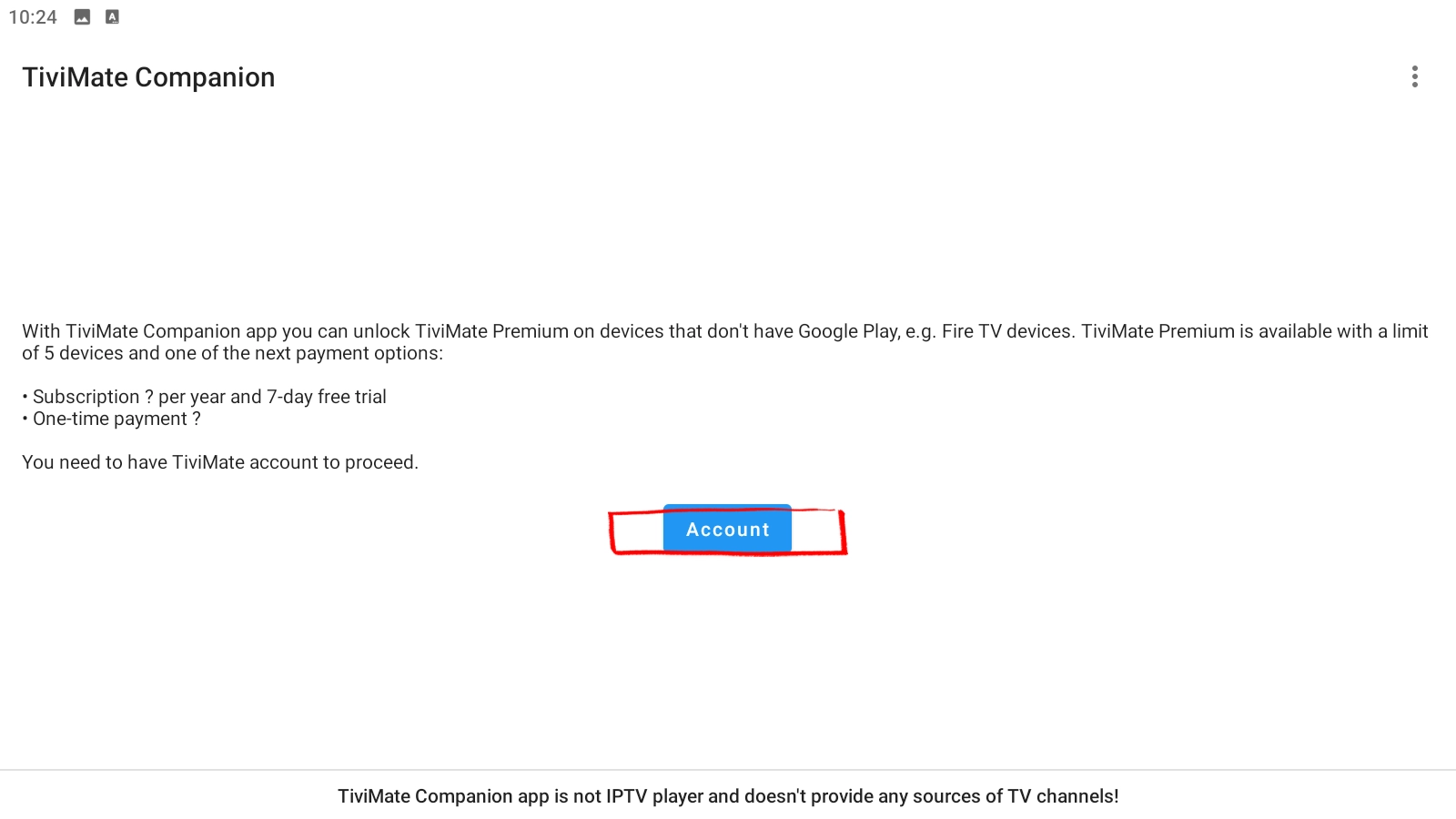
Open TiviMate Companion and tap Account to proceed to the plan selection screen.
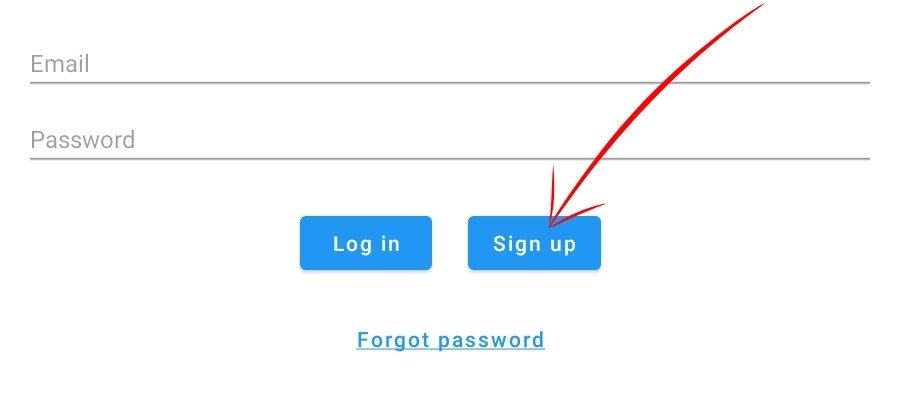
Tap Sign Up to register with your email. Already have an account? Tap Log in instead.
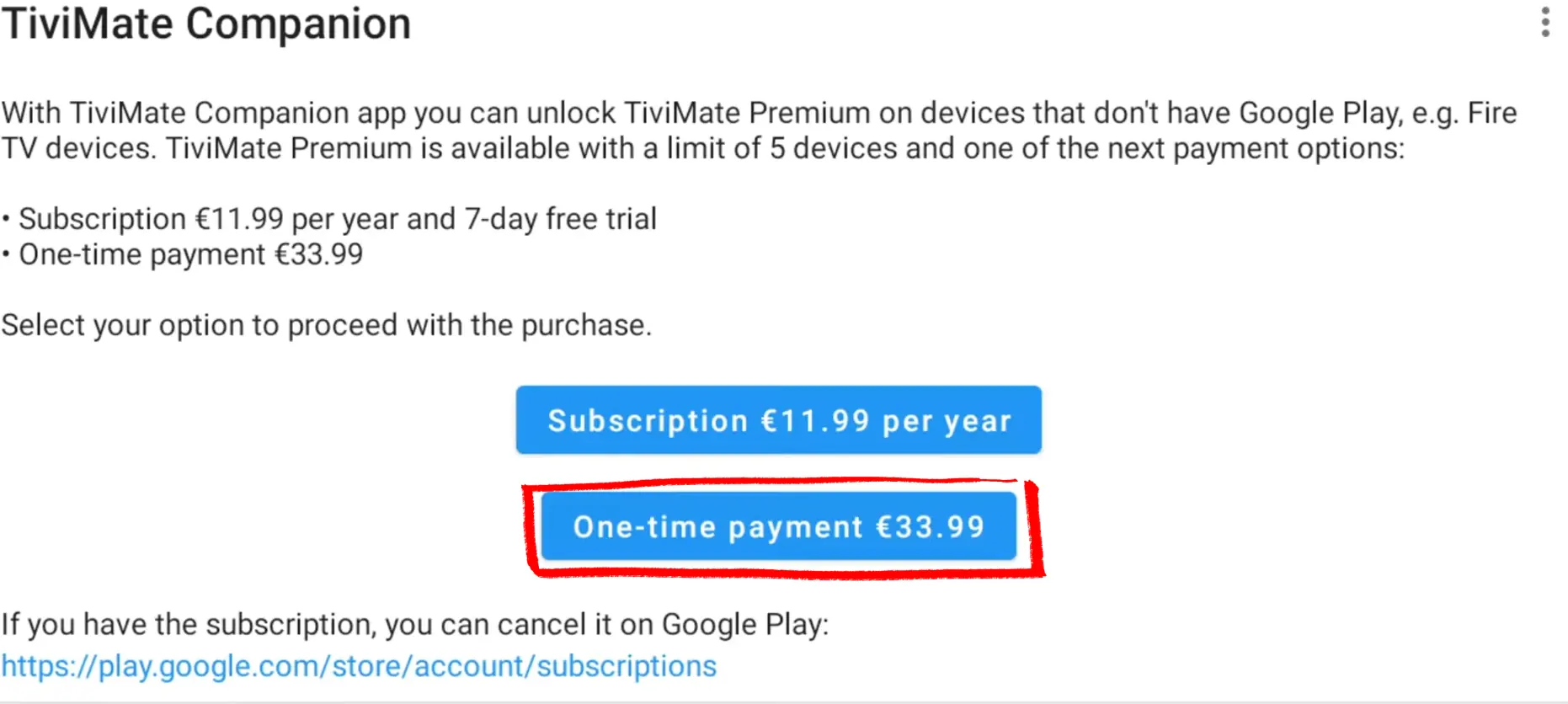
Select Subscription at €11.99/year (7-day free trial) or One-time payment at €33.99 for lifetime access. The lifetime option pays for itself quickly for daily IPTV users.
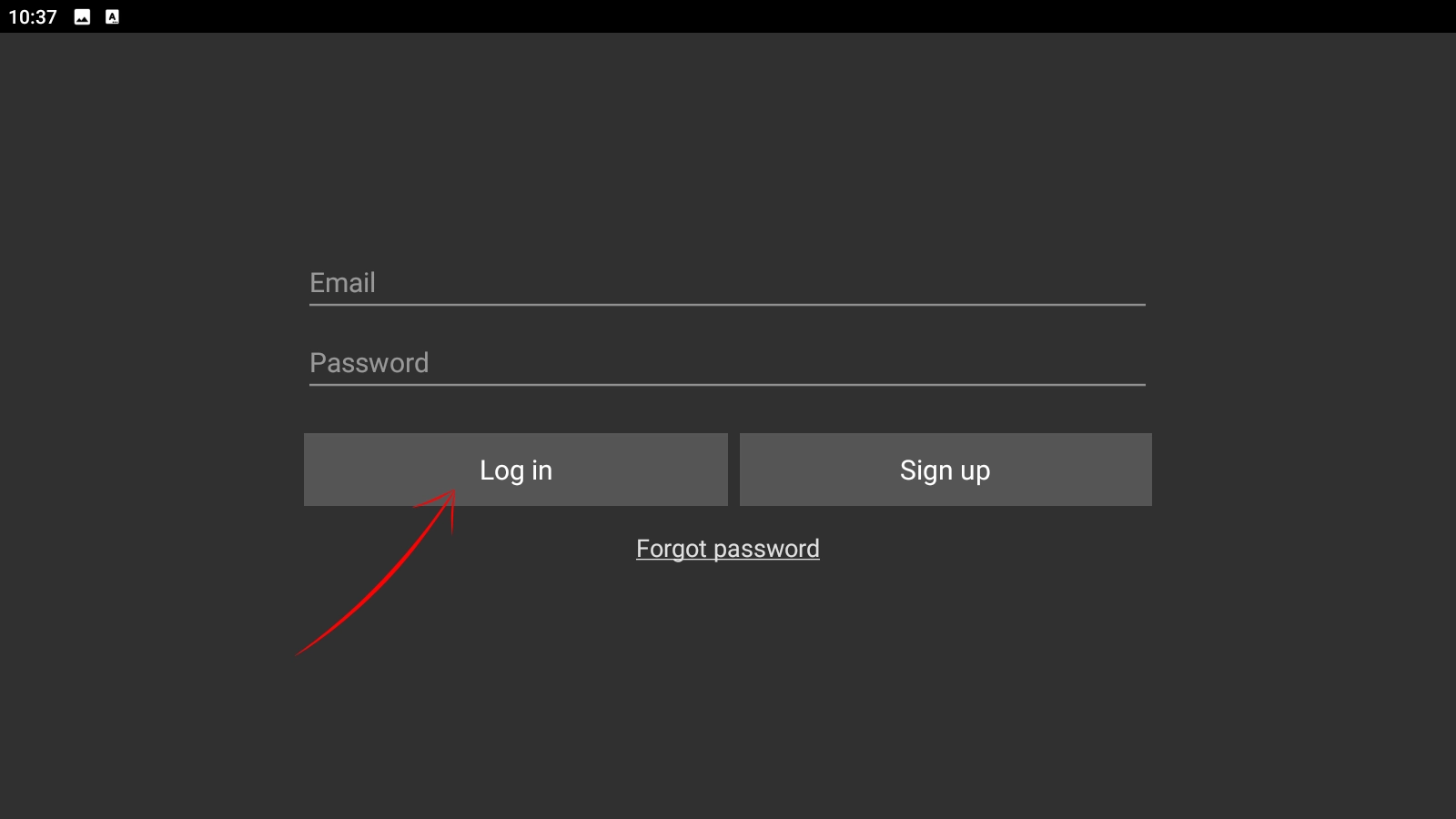
Back in TiviMate, go to the login screen, enter your email and password, then tap Log in. Premium activates immediately.
You now have full access to TiviMate Premium on your Android phone — multi-playlist, EPG, recording and complete customization are all unlocked.
How to Install TiviMate on Google TV (Chromecast)
▼TiviMate does not appear in the Google TV app store on Chromecast. You install it by sideloading — same concept as Fire Stick but the developer unlock steps are slightly different.
Go to Settings → System → About. Select Android TV OS Build and click it 7 times until you see "You are now a developer."
Then go to Settings → System → Developer options and enable Install unknown apps.
Search for Downloader by AFTVnews in the Google TV store and install it. Allow it to install apps when prompted.
Open Downloader, type 272483 and press GO. After download, install TiviMate and open it to add your playlist.
Add your playlist and start watching.
How to Set Up EPG in TiviMate
EPG is the TV guide — it shows what is on each channel right now and what comes next. Without it, TiviMate shows channels with no program info, just a blank guide.
If you added your playlist with Xtream Codes, EPG usually loads automatically within a few minutes. If it does not, or if you used an M3U URL, set it up manually:
EPG takes 5–10 minutes to fully populate on first load. If it still does not load after that, your provider may not offer an EPG URL — ask them directly.
TiviMate Settings Worth Changing
The defaults work, but three settings make a real difference:
Set to 30 seconds. In my testing this single change fixed buffering on 4 out of 5 unstable streams — it gives TiviMate time to absorb momentary dips without interrupting playback.
Default is ExoPlayer — fine for most setups. For Nvidia Shield with 4K streams, switch to Hardware decoder. If specific channels crash, try Software decoder as fallback.
Set to 24 hours so TiviMate stays current automatically. M3U playlists go stale without regular refreshes.
TiviMate Premium — is it worth it?
The free version has one real limit: one playlist, no favorites. Once you want a second provider, channel groups, or recording, you need Premium.
Try Premium before committing. Renews every year.
Pays off in under 4 years. Covers 5 devices — ~$7 per device forever.
How to buy and activate:
Go to tivimate.com, create a free account, pick your plan and pay. Annual or Lifetime — your call.
Open TiviMate on your device → Settings → Account → log in with your tivimate.com email and password. Premium activates immediately.
How to Record with TiviMate (Premium Only)
Recording is a Premium feature. TiviMate saves recordings to local storage — USB drive on Fire Stick, or internal/external storage on Android devices.
Pick a USB drive or device storage. Budget a few GB per hour of HD content — use Ethernet for gap-free recordings.
Recording starts immediately from that moment and saves to your chosen storage location.
TiviMate records the full show automatically when it starts — no need to be home.
All saved content appears here. Recording quality matches the stream — buffering during live playback creates gaps.
TiviMate Not Working? Common Fixes
Wait 2–3 minutes for large playlists. Still empty? Verify your credentials — expired or wrong credentials are the most common cause by far.
Set buffer to 30 seconds in Settings → Playback. Switch to wired Ethernet. Still buffering on a fast connection? Your ISP may be throttling — test a VPN to confirm.
Settings → EPG → Update Now. Check your EPG URL is correct. With Xtream Codes, try removing and re-adding your playlist — EPG pulls automatically on a fresh import.
Credentials are case-sensitive. Server URL needs the port number (e.g. http://server.com:8080). Copy-paste, never type by hand. Test them here first.
The provider's server rejected the connection. Common causes: subscription expired, too many simultaneous connections, or the server address changed. Contact your provider.
Clear app cache: Settings → Applications → Manage Installed Applications → TiviMate → Clear Cache. Restart your device. Still crashing? Reinstall using code 272483.
TiviMate FAQ — Setup, EPG & Premium
Yes. TiviMate is free to download and use with one playlist. The free version covers live TV, EPG and basic playback. Premium ($9.99/year or $33.99 lifetime) adds multiple playlists, favorites, PVR recording and multi-view. For a single provider, the free version is enough to start.
TiviMate is a legal media player — the same category as VLC or Windows Media Player. It does not provide any content. What matters is your IPTV subscription: a provider with proper licensing is legal, one that offers premium channels without licensing is not. TiviMate has nothing to do with that distinction.
No. TiviMate is Android-only and is not on the App Store. The closest alternative for iPhone and iPad is Smarters Player Lite (free) — it supports the same Xtream Codes and M3U connections and works well on iOS. The interface is different but the functionality is comparable.
No. Roku runs a closed proprietary OS that does not allow sideloading or APK installation. TiviMate is an Android APK, so it simply cannot run on Roku. If you want a TiviMate-like experience, you need a Fire Stick or an Android device. Roku's IPTV options are limited to what is in the Roku Channel Store.
Not natively. TiviMate is Android-only. On Windows, you can run it through an Android emulator like BlueStacks — install BlueStacks, open its built-in Play Store, search TiviMate and install it. It works but the experience is not smooth on a desktop. For Windows and Mac, IPTV Smarters Pro has a native desktop app that is a better choice.
TiviMate Companion is a separate Android app that turns your phone into a remote control for TiviMate running on a TV device. Install TiviMate on your Fire Stick or Android TV Box, install Companion on your phone, and you can browse channels, manage playlists and control playback from the phone while watching on the TV. Companion also handles Premium license activation from devices where the payment flow is restricted.
The official TiviMate short code for the Downloader app is 272483. Enter it in Downloader's URL field and press GO — it redirects to the latest TiviMate APK automatically. If the code does not work, use the direct URL: https://tivimate.com/
One license covers 5 devices simultaneously, whether you bought Annual or Lifetime. Log in with the same tivimate.com account on each device under Settings → Account. All 5 can run TiviMate at the same time.