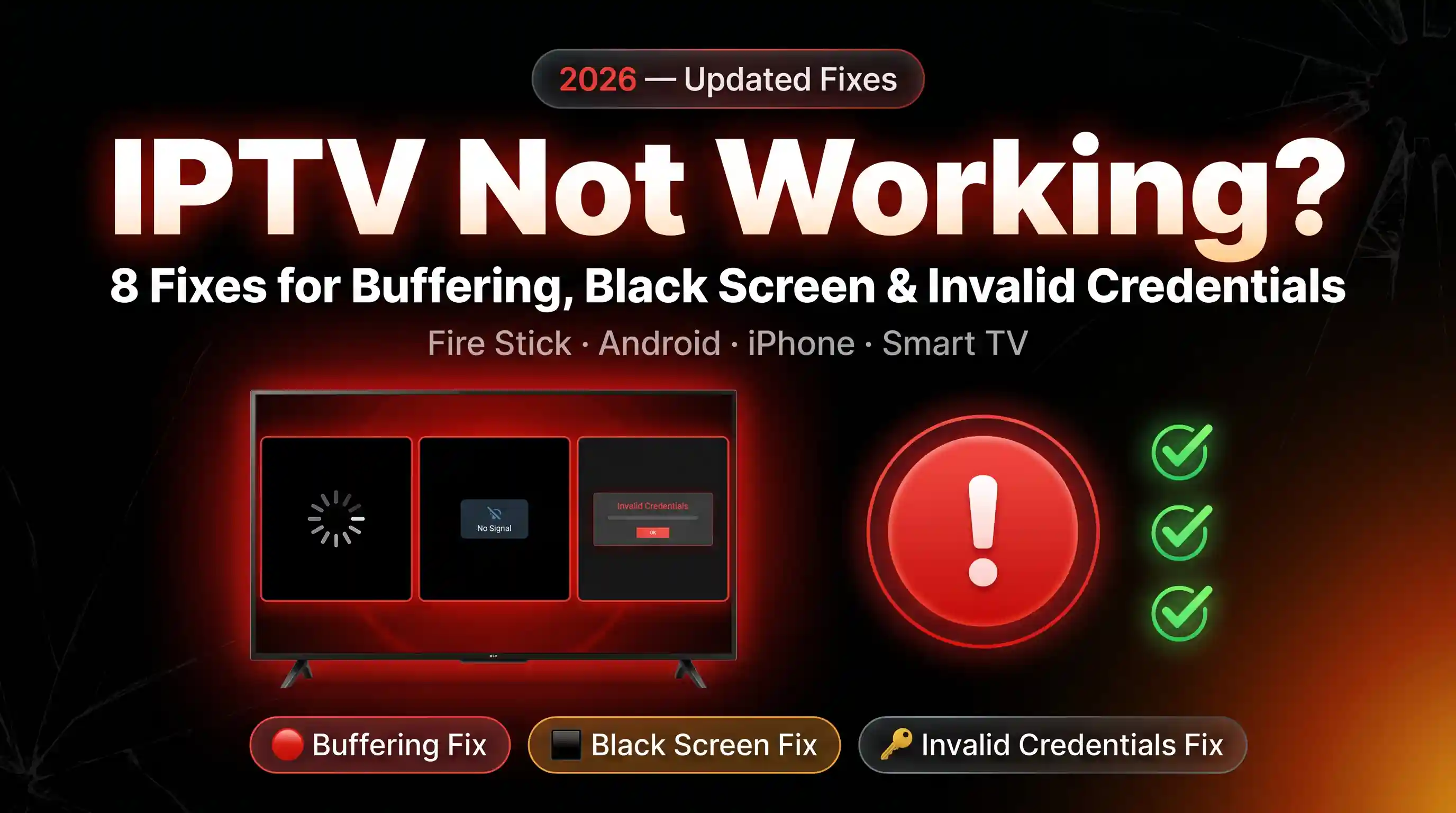
Your IPTV was working fine. Then it wasn’t. Channels won’t load. The screen is black. It keeps buffering every 30 seconds. Or you get an “invalid credentials” error when nothing has changed.
What makes IPTV frustrating is that a dozen different problems look identical on the surface. A black screen could be your internet, your server, your app, your device, or your subscription, and the fix is different for each one. Most “my IPTV stopped working” posts on Reddit get five wrong answers before the right one.
This guide covers the eight most common reasons IPTV breaks: buffering, black screen, invalid credentials, freezing on Fire Stick, Android, iPhone and Smart TV. They’re ordered by how often they actually happen, not by what sounds dramatic. Start from the top. Most people find their fix in the first three sections.
Before you start anything else, run our free IPTV Checker on your URL or credentials. It eliminates the most common causes in 10 seconds and tells you whether the problem is even on your end.
Quick Diagnosis — Start Here
Match your symptom to the right fix before you start guessing:
| What you see | Most likely cause | Jump to |
|---|---|---|
| Channels won’t load at all | Server down or wrong credentials | Go → |
| Loads but black screen on play | Stream expired or codec issue | Go → |
| Constant buffering / freezing | Internet speed or provider issue | Go → |
| “Invalid credentials” error | Wrong login or subscription expired | Go → |
| Works on one device, not another | App or device problem | Go → |
| Was working, stopped suddenly | Server maintenance or IP block | Go → |
Fix 1: Server Not Responding or Channels Not Loading
This is the most common IPTV problem. You open the app, your channel list either fails to load at all or loads but nothing plays.
What this looks like
- “Unable to connect to server”
- “Connection timeout”
- The app sits on a loading spinner indefinitely
- Channel list loads but every channel shows an error when you try to play
Why it happens
Your IPTV app talks to a remote server every time you open it. If that server is down, overloaded, or has blocked your IP, the connection fails. Your credentials being correct is irrelevant when the server isn’t picking up the phone.
How to fix it
Step 1 — Test your server directly. Use our IPTV Checker. Paste your M3U URL or Xtream Codes credentials. If the checker returns an error, the problem is the server — not your device or app. Move to Step 3.
Step 2 — Check your internet connection. Open a browser and visit any website. If pages load normally, your internet is fine. If not, restart your router by unplugging it for 30 seconds. Most IPTV connection errors that appear to be server problems are actually a dropped or unstable local connection.
Step 3 — Check if it is a peak hours issue. IPTV servers are under the most load between 7pm and 11pm local time. If your IPTV consistently fails during these hours but works in the morning, your provider’s server is underpowered for their subscriber base. This is a provider problem — not something you can fix on your end.
Step 4 — Contact your provider. Tell them something specific: “I’m getting a connection error. I tested with IPTV Checker and the server returned [exact error]. Is there a server outage?” A provider that replies within a few hours is worth keeping. One that ghosts you for 48 hours has already told you what kind of service it is.
Common IPTV error codes you’ll see
If your app shows an HTTP error code instead of a generic “connection failed” message, the code itself usually tells you exactly what’s wrong:
| Code | What it means | What to do |
|---|---|---|
401 Unauthorized | Wrong username or password | Re-paste credentials, check for trailing spaces. See Fix 3. |
403 Forbidden | Subscription expired, IP blocked, or geo-restricted | Verify expiry with IPTV Checker; try a VPN. |
404 Not Found | Server URL is wrong, or provider moved servers | Ask provider for the current server URL. See Fix 5. |
502 Bad Gateway / 503 Service Unavailable | Provider’s server is down or overloaded | Wait 15-30 minutes. Nothing you can do client-side fixes this. |
504 Gateway Timeout | Server isn’t responding fast enough | ISP throttling possible — try a VPN. |
Connection timed out | Server unreachable, or ISP blocking the IP | Try a VPN to confirm. If VPN works, ISP is the cause. |
Max connections reached | Subscription connection limit hit | Sign out of other devices, or your URL was shared/leaked. |
Fix 2: IPTV Buffering and Freezing
Buffering is the second most common complaint. Channels load fine, but they pause, freeze, or visibly drop quality every few minutes.
What this looks like
- Video pauses every 20–60 seconds with the loading spinner
- Picture quality keeps dropping to low resolution
- Channel works for 5 minutes then freezes permanently
- Audio continues but video freezes
The two causes — and how to tell them apart
IPTV buffering has exactly two root causes: your connection or your provider’s server. Knowing which is which saves you from hours of wrong troubleshooting.
In my own testing across three different providers, server-side buffering accounts for roughly 70% of complaints — even on a 500 Mbps fibre connection with 8ms latency, an overloaded provider server still drops to 480p and stutters every 30 seconds during peak hours (8-11pm local time). If your Fire Stick 4K Max buffers but YouTube doesn’t, blaming your router is a waste of an afternoon.
Run this test: Start a channel that buffers. While it is buffering, open YouTube on the same device and play a 1080p video. If YouTube plays smoothly, the problem is your provider’s server. If YouTube also buffers, the problem is your internet connection.
If the problem is your internet connection
Step 1 — Check your speed. Use our IPTV Buffering Test to measure your actual download speed and latency to your IPTV server. IPTV requirements by quality:
| Quality | Minimum speed | Recommended |
|---|---|---|
| SD (480p) | 5 Mbps | 10 Mbps |
| HD (720p) | 10 Mbps | 20 Mbps |
| FHD (1080p) | 20 Mbps | 30 Mbps |
| 4K / UHD | 40 Mbps | 60 Mbps |
Step 2 — Switch to wired ethernet. Wi-Fi introduces variable latency that causes IPTV buffering even on fast connections. A wired ethernet cable eliminates this entirely. If you cannot run a cable, move your device closer to the router or use a powerline adapter.
Step 3 — Reduce network load. Close every other app on your device. Pause any downloads or updates. Ask others on your network to stop streaming while you test. IPTV is more sensitive to bandwidth competition than most applications.
Step 4 — Change your DNS server. A slow DNS response delays every channel load. Switch to:
- Google DNS:
8.8.8.8and8.8.4.4 - Cloudflare DNS:
1.1.1.1and1.0.0.1
On most routers this is in Settings → Network → DNS. On individual devices, it is in Wi-Fi settings → Advanced → DNS.
If the problem is your provider’s server
Step 1 — Try a different channel. If only one channel buffers while others work, that specific stream is the problem — not your connection.
Step 2 — Increase your app’s buffer size. In TiviMate: Settings → Playback → Buffer Size → increase to 30 seconds. In IPTV Smarters: Settings → Stream Buffer. A larger buffer absorbs momentary dips in server speed.
Step 3 — Try a VPN. Some ISPs deliberately throttle IPTV traffic — a practice known as bandwidth throttling that’s documented across most major consumer ISPs. A VPN routes your traffic differently and bypasses throttling. Use a server location close to you — the further the VPN server, the higher the added latency.
Step 4 — Switch provider. If buffering hits multiple channels consistently and a VPN doesn’t help, your provider’s server simply can’t handle its current load. No troubleshooting you do at home will fix an oversold server. Time to move on.
Fix 3: Invalid Credentials / Login Failed
You enter your username and password and get an authentication error. Or the app connects but immediately says your credentials are wrong.
What this looks like
- “Invalid credentials”
- “Authentication failed”
- “Login failed”
- “Wrong username or password”
- App connects to server but shows 0 channels
How to fix it
Step 1 — Check for typos character by character. Copy your username and password from the original email your provider sent. Don’t type them from memory; people get this wrong more often than they think. Paste them directly into the app. One wrong character, one extra space, one wrong capital letter, and you get this exact error.
Step 2 — Check for a space before or after the text. When copying credentials, invisible trailing spaces often get copied along. After pasting, manually delete one character from the end and retype it to ensure no hidden space exists.
Step 3 — Verify your subscription is active. Subscriptions expire — sometimes on a day different from what you expected. Use our IPTV Checker to see your subscription expiry date. If it shows expired, contact your provider to renew.
Step 4 — Check your connection limit. Most IPTV subscriptions allow 1 or 2 simultaneous connections. If a family member or someone you shared your credentials with is watching at the same time, the server will reject your login with an authentication error. Ask your provider to check your connection count.
Step 5 — Request new credentials. If nothing above works, ask your provider to reset your account and issue fresh login details. A legitimate provider does this in minutes. If they can’t or won’t, that tells you everything you need to know about the service.
Fix 4: IPTV Black Screen
The channel appears to load — you can see it selected, the EPG shows program information — but the screen stays black. No error message, just nothing. This is almost always a video codec mismatch between the stream format and your device’s hardware decoder.
What this looks like
- Channel is selected, no error shown, but screen is black
- Audio plays but no video
- Video plays for 1–2 seconds then goes black
- Black screen on some channels but not others
How to fix it
Step 1 — Try a different channel. If only some channels are black while others work, those specific streams are down or geo-restricted. This is a provider issue — those streams are dead.
Step 2 — Switch video player. In TiviMate: long-press a channel → Player → try switching between ExoPlayer, Software Decoder and System Player. In IPTV Smarters: Settings → Playback → change player. Different stream types require different decoders.
Step 3 — Disable hardware acceleration. Some devices cannot hardware-decode certain stream formats. In your app’s playback settings, turn off Hardware Acceleration (HW+). It forces software decoding which is slower but more compatible.
Step 4 — Check HDMI connection. On Fire Stick and TV Boxes, a loose or low-quality HDMI cable causes black screen issues that look exactly like a streaming problem. Try a different HDMI port or cable.
Step 5 — Check for HDCP issues. Some 4K streams require HDCP 2.2 compliance from your TV and device. If your TV or cable does not support this, protected content shows as black. Use an HDMI cable rated for HDCP 2.2 and ensure your TV supports it.
Fix 5: IPTV Stopped Working Suddenly
Everything was fine. Nothing changed. Then IPTV stopped working overnight or without warning.
What this looks like
- Was working yesterday, fails today with no changes on your end
- Error appears after a router restart or ISP maintenance
- Works on mobile data but not on your home Wi-Fi
- Stopped after an app update
Common causes and fixes
Five things usually cause a sudden IPTV failure when “nothing changed.” Walk through them in order.
Your IP address changed. Most home connections use dynamic IPs that rotate every few days. Some providers whitelist specific IPs and reject any new ones automatically. If your router restarted yesterday and IPTV stopped working today, this is almost certainly the cause. Contact your provider to whitelist your new IP, or switch to one that doesn’t use whitelisting in the first place.
Your provider’s server moved or changed. Providers migrate servers more often than they tell you. Your credentials still work, but the server URL stored in your app is now pointing at nothing. Ask your provider for the new address and update it.
Your ISP started blocking IPTV traffic. This happens more often in markets with strict streaming regulation. Try a VPN (same approach as the bandwidth-throttling fix in Fix 2). If IPTV works through the VPN but not without it, your ISP is the cause and it isn’t going away.
Your app updated and reset settings. App updates occasionally reset playback settings, stream parser config, or stored credentials. After any major update, double-check that your login is still saved and your player settings still match what was working before.
Your subscription expired. Subscriptions sometimes expire a day or two earlier than the email said, especially if your provider operates in a different timezone. Use our IPTV Checker to read the actual expiry date off the server, then handle renewal via the credentials flow in Fix 3 if needed.
Fix 6: Device-Specific IPTV Problems
IPTV works on one device but not another, or different problems appear depending on the device.
Fire Stick (and TiviMate not working on Fire Stick)
IPTV not loading on Fire Stick: Usually a RAM issue. Fire Sticks have very little of it, and other apps eat what’s there. Close everything in the background before launching your IPTV app: from the home screen, hold the Home button, open App Manager, and force-stop everything else.
TiviMate not working on Fire Stick: This is the single most-searched IPTV issue on Fire Stick. In 90% of cases it’s one of three things: (1) low memory — force-stop background apps; (2) wrong player — in TiviMate Settings → Playback, switch Player to ExoPlayer with Buffer set to 15–30 seconds; (3) corrupt install after a major version bump — uninstall, restart the Fire Stick, reinstall fresh without restoring a backup.
App crashes after update: Uninstall TiviMate, restart the Fire Stick, then reinstall. Do not restore from backup — reconfigure fresh. Some settings from old versions cause crashes after major updates.
Android Phone and Tablet
Channels load but quality is poor: Android devices default to lower quality to save battery. In your IPTV app’s playback settings, force stream quality to the maximum your subscription supports.
App crashes in background: Android kills background apps aggressively. Go to Settings → Battery → find your IPTV app → set Battery Optimization to “Unrestricted” or “Not optimized.” If the crashes started after an app update, also check Fix 5 for the “app updated and reset settings” cause.
iPhone and iPad
IPTV Smarters won’t add playlist on iOS: iOS has stricter network permissions than Android. Make sure IPTV Smarters has Local Network access enabled in Settings → Privacy → Local Network.
Buffering only on iPhone: iPhones use more aggressive cellular power management. If on Wi-Fi, disable Low Power Mode during IPTV use — it throttles background network activity.
Smart TV (Samsung / LG)
IPTV Smarters not in app store: On older Samsung models (pre-2019), the app appears in the Video category. If still not found, check if your TV firmware is current — outdated firmware sometimes blocks newer apps.
Smart IPTV shows “playlist not loaded”: The MAC address entered on siptv.app/mylist must match exactly what the app shows on your TV. Even one wrong character breaks the link. Recheck the MAC address character by character.
Fix 7: EPG Not Working — “No Information” on All Channels
The Electronic Program Guide (EPG) shows “No information” for every channel, or program schedules are completely wrong.
Why this happens
The EPG and your channel list are two separate things. Your M3U playlist tells the app where to find each stream; the EPG is a totally separate XMLTV file that the app downloads from a different URL and matches up to channels using tvg-id codes. If those codes don’t match, you get streams with no schedules.
How to fix it
Step 1 — Add your EPG URL.
Ask your IPTV provider for their EPG URL. It usually looks like http://provider.com/xmltv.php?username=user&password=pass. Add it separately from your playlist:
- TiviMate: Settings → EPG → EPG URL → paste → Refresh
- IPTV Smarters: Settings → EPG Source → add URL
Step 2 — Force a manual EPG refresh. After adding the URL, force an immediate refresh rather than waiting for the scheduled one. In TiviMate: Settings → EPG → Refresh Now.
Step 3 — Check that tvg-id codes match.
If EPG shows for some channels but not others, those channels have no matching EPG code in your playlist. This is a provider issue — their M3U playlist uses tvg-id values that do not match the EPG database they are using.
Step 4 — Try an alternative EPG source. Several free XMLTV EPG sources exist for common channel lists. Your provider may also offer multiple EPG URLs — ask if there is an alternative.
Fix 8: IPTV Audio and Subtitle Problems
No audio on some channels
Some channels carry multiple audio tracks. Your app may have selected the wrong one. In TiviMate: while a channel plays, press the audio track button (headphone icon) and switch to the available track. In IPTV Smarters: tap the screen while playing → Audio → select the correct track.
Wrong audio language
Your app may default to the first audio track rather than your preferred language. In TiviMate: Settings → Playback → Preferred Audio Language → set your language.
Subtitles always on
In TiviMate: Settings → Playback → Subtitles → disable. Some streams embed forced subtitles that require switching the stream rather than disabling at the app level.
Audio works, video black
Covered in Fix 4 above — this specifically indicates a video codec mismatch. Switch to software decoding in your app’s playback settings.
When to Switch IPTV Provider
Some problems can’t be fixed because they aren’t yours to fix. They’re the provider’s. The honest signs you’ve outgrown a provider:
- The server drops out more than once a week
- Buffering persists even with fast internet and a VPN
- Channels start disappearing without notice
- Support doesn’t reply within 24 hours
- “Max connections” errors trigger when only you’re watching
- Your subscription quietly expires earlier than the date you paid for
A provider worth keeping holds 99.9%+ uptime, replies within a few hours, and quietly replaces dead channels within a day. If yours isn’t doing those three things, no amount of router troubleshooting will fix it.
Frequently Asked Questions
Why is my IPTV not working today?
The most likely cause is a server-side problem. Your provider’s server is either down, in maintenance, or your subscription quietly expired. Use our IPTV Checker to test your connection in 10 seconds. If it confirms your credentials are valid and the server responds normally, the problem is on your device or app side, not the provider.
Why does my IPTV keep buffering even with fast internet?
Fast internet is necessary but not sufficient for smooth IPTV. Two other factors matter equally: your connection’s latency to the IPTV server (lower is better), and the server’s ability to deliver streams reliably under load. You can have 500 Mbps broadband and still experience buffering if your provider’s server is overloaded. Use our Buffering Test to measure your latency to the server specifically.
Why does IPTV say invalid credentials when nothing changed?
In order of how often it actually happens: your subscription expired, your provider reset your account (some do this automatically to stop credential sharing), or a recent app update wiped your stored login. Check your expiry date with our IPTV Checker first, then re-enter your credentials by hand instead of trusting whatever the app remembered.
Why does IPTV work on my phone but not my TV?
Different devices handle IPTV streams differently. The most common cause is the video decoder — your TV may not support the codec your provider uses for certain channels. Switch the video player or decoder mode in your app’s playback settings. Also check that both devices are on the same network and that your subscription allows multiple simultaneous connections.
How do I fix IPTV black screen?
A black screen with no error almost always means a codec mismatch. Your player can’t decode the stream format. In TiviMate, long-press the channel and change the player. In IPTV Smarters, go to Settings → Playback and switch the player type. On a lot of devices, turning off Hardware Acceleration in the app’s settings also clears it up.
Can a VPN fix IPTV problems?
A VPN fixes IPTV problems caused by ISP throttling or geo-blocking, and nothing else. If your ISP deliberately throttles IPTV traffic (more common than most people realise), a VPN routes around it and restores normal performance. A VPN adds latency, though, so pick a server geographically close to you to keep the hit small. None of this helps if your actual problem is a server outage, an expired subscription, or wrong credentials.
How do I know if my IPTV subscription has expired?
Use our IPTV Checker. It reads the subscription expiry date straight from your server and shows it to you, no guesswork. Alternatively, contact your provider. A legitimate provider keeps your expiry date visible in a client panel and emails you when renewal is coming up; if neither of those things exists, that’s a flag in itself.
Why is TiviMate not working on Fire Stick?
The most common cause of TiviMate not working on Fire Stick is insufficient RAM. Fire Sticks ship with very little memory, and background apps eat what’s left. Close every other app via the Fire Stick App Manager, then in TiviMate go to Settings → Playback and set Player to ExoPlayer with a 15–30 second buffer. If TiviMate still crashes after this, uninstall it, restart the Fire Stick, and reinstall fresh without restoring a backup. See Fix 6 for the full Fire Stick troubleshooting.
What does IPTV error code 502 mean?
IPTV error 502 (Bad Gateway) or 503 (Service Unavailable) means your provider’s server is down or overloaded. It’s not a problem on your end. Wait 15-30 minutes and retry. If the error persists for hours, contact your provider — a 502 lasting that long indicates a server outage they should be fixing. No router restart, app reinstall, or VPN change will resolve a 502; only the provider can. See the error code table in Fix 1 for other common codes.
IPTV Troubleshooting Tools
IPTV Checker
Test your M3U URL or Xtream Codes credentials instantly. Shows server status, channel count, subscription expiry and response latency in seconds.
IPTV Buffering Test
Measure your connection speed and latency to your IPTV server. Tells you whether buffering is caused by your internet or your provider's server.
M3U to Xtream Converter
Convert your M3U URL to Xtream Codes credentials. Xtream Codes loads channels faster and is more reliable across all IPTV apps.
Channel Viewer & Extractor
Browse your full channel list by category, identify dead streams, and download a clean playlist with only working channels.