IPTV Speed & Buffering Test
Test your IPTV connection speed, latency and buffer capacity in real time. Find out if your internet is fast enough for smooth, buffer-free streaming.
How Much Speed Do You Need for IPTV?
Run the test to see if your connection handles IPTV streaming. Here's what each quality requires:
How It Works
1. Start the Test
Click "Start Speed Test." The tool connects to multiple CDN nodes specifically optimised for HLS and DASH streaming protocols.
2. Measure Real Streaming Speed
Unlike generic speed tests, this tool measures sustained bitrate — the speed that matters for IPTV buffering — not just peak download speed.
3. See If You're Ready for IPTV
Receive a clear verdict — SD, HD, Full HD or 4K ready — so you know exactly what quality your connection can handle without buffering.
When should you run the IPTV speed test?
A standard internet speed test is not enough to diagnose IPTV buffering. This test measures sustained streaming throughput — the metric that actually determines whether your connection can handle live IPTV without freezing.
IPTV keeps buffering despite fast internet
If your generic speed test shows 100 Mbps but IPTV still buffers, the problem is usually sustained bitrate under load — not peak speed. Run this test to see your real streaming throughput and compare it against the minimum required for your target quality (25 Mbps for 1080p, 50 Mbps for 4K).
Comparing Wi-Fi versus Ethernet for IPTV
Wi-Fi introduces packet loss and latency that doesn't show up on a standard speed test but directly causes IPTV buffering. Run this test on both connections to measure the actual difference in streaming performance — most users are surprised by how much Ethernet improves results.
After switching ISP or upgrading your router
Verify that a new router or ISP actually improved your streaming quality. Run the test before and after the change — look at latency and buffer score, not just download speed, to get an accurate picture.
Frequently Asked Questions
For standard definition (480p): 5 Mbps. For HD (720p): 10 Mbps. For Full HD (1080p): 25 Mbps minimum. For 4K: 50 Mbps or more. These are sustained speeds — not peak speeds from a generic test.
Fast download speed is not the only factor. IPTV buffering is often caused by: Wi-Fi interference (switch to Ethernet), IPTV server overload (peak hours), wrong DNS settings, or an outdated router. Run the buffering test to isolate whether your connection is the cause. See our full troubleshooting guide →
Generic speed tests (Speedtest.net) measure peak throughput over a short burst. IPTV requires sustained bitrate — consistent delivery over minutes or hours. Our test specifically measures streaming throughput against HLS/DASH nodes for a realistic result.
Ethernet is always better for IPTV. Wi-Fi adds latency and can drop packets, causing buffering even on fast connections. If Ethernet is not possible, use a 5 GHz Wi-Fi band and position your device as close to the router as possible.
Top improvements: (1) Switch from Wi-Fi to Ethernet. (2) Restart your router and streaming device. (3) Lower the stream quality in your app settings. (4) Check your IPTV subscription is active with the IPTV Checker. (5) Contact your provider if the server itself is slow.
Yes. A VPN routes your traffic through an extra server, which adds latency and reduces throughput — typically by 10–30%. If you use a VPN, run the buffering test with and without it to see the impact. Choose a VPN server geographically close to you for minimum speed loss.
If your speed test results are good (above the required Mbps for your quality level) but IPTV still buffers, the issue is likely your provider's server — not your connection. Try switching to a less-used server if your provider offers multiple options, or contact them during off-peak hours.
Other free tools
Improve your streaming workflow with our complementary utilities.
View all arrow_forwardRelated Guides
All articles arrow_forward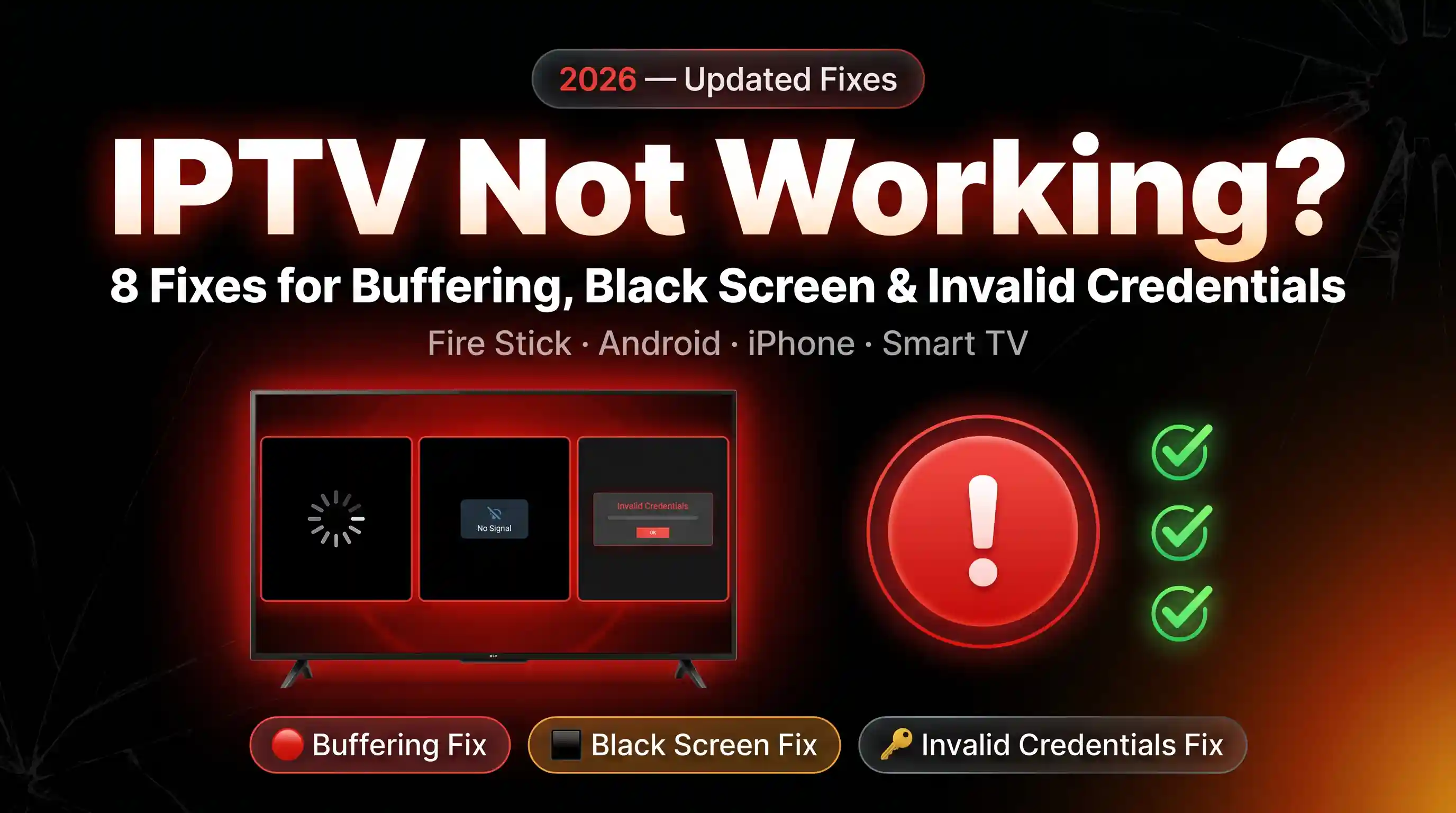
IPTV Not Working? 8 Fixes That Actually Work (2026)
IPTV not working? 8 verified fixes for buffering, black screen, invalid credentials and app freezing on Fire Stick, Android, iPhone & Smart TV — under 5 min.
Read article arrow_forward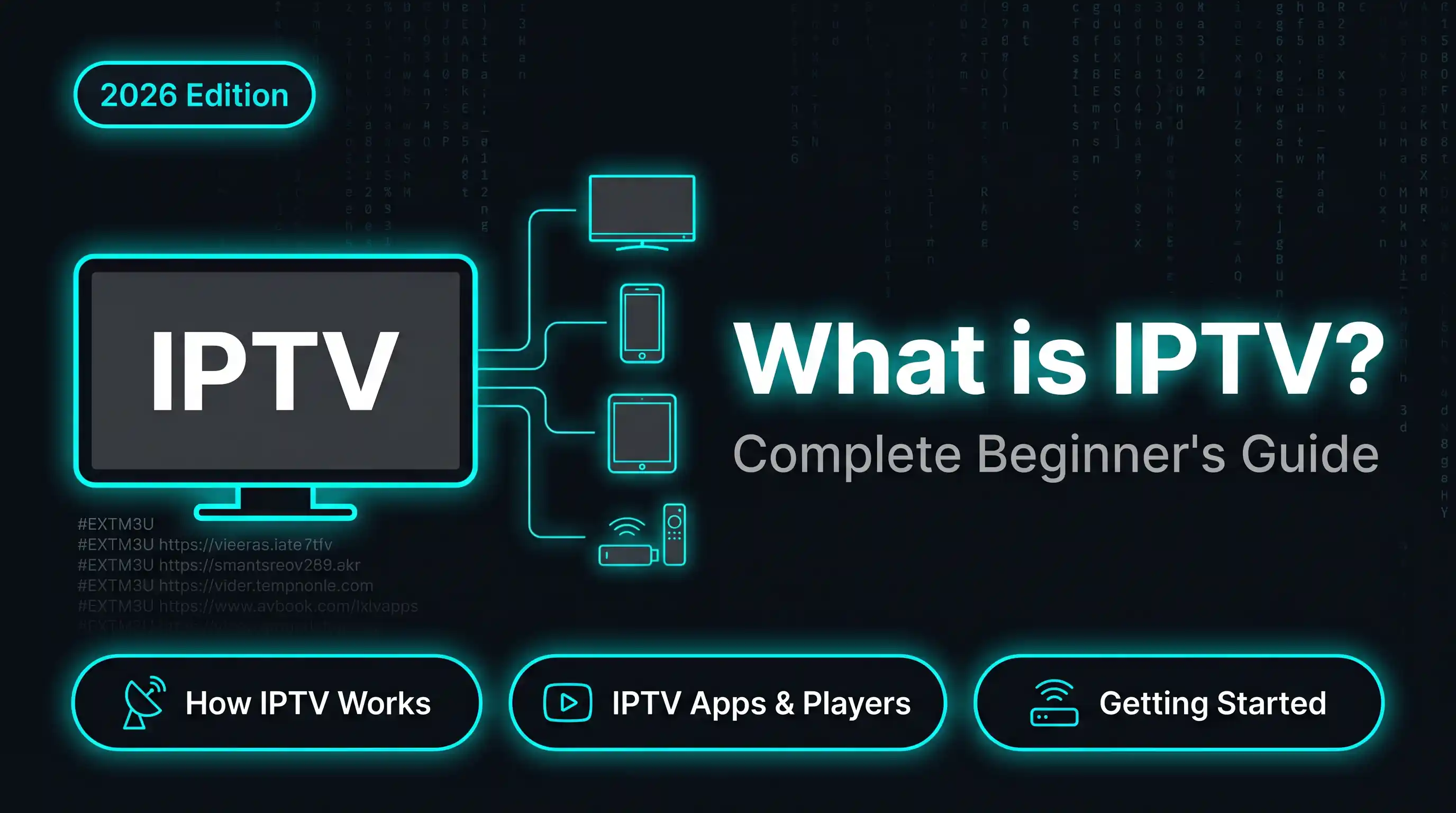
What is IPTV? How It Works, Types & Setup Guide (2026)
IPTV delivers live TV channels over the internet — no cable needed. Learn how IPTV works, which apps to use, and how to set it up in under 15 minutes.
Read article arrow_forward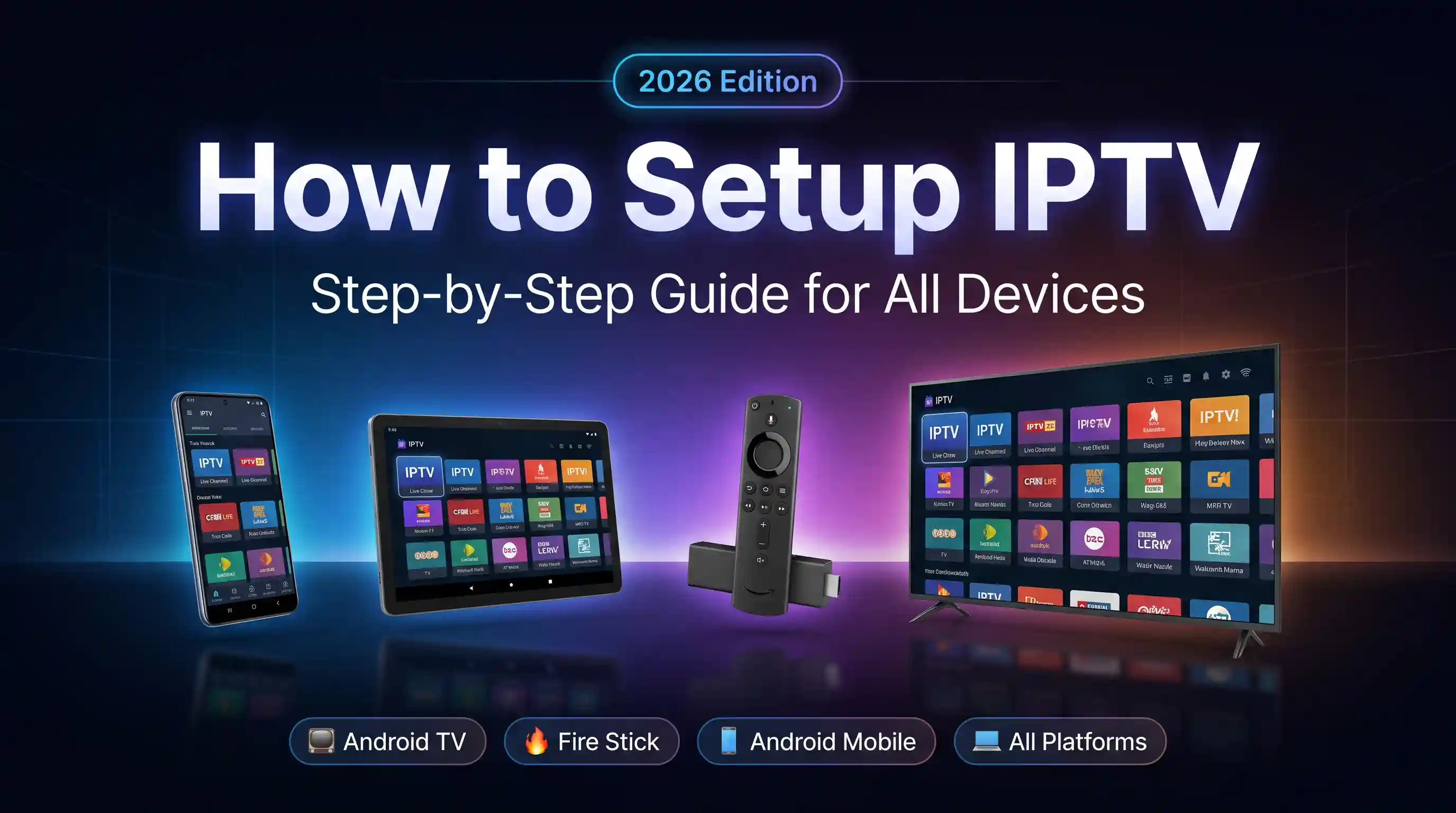
How to Setup IPTV in 2026 (Step-by-Step, All Devices)
Free 2026 guide: setup IPTV on Fire Stick, Android TV, iPhone, Smart TV & Windows. Install TiviMate with Xtream Codes or M3U in under 15 minutes.
Read article arrow_forward